
Software
Microsoft Teams channels can become chaotic if not managed properly. These 10 best practices will help your team stay organized, boost productivity, and leverage Teams’ full potential for seamless collaboration—no matter your team size or industry.
Standardize Channel Naming Conventions

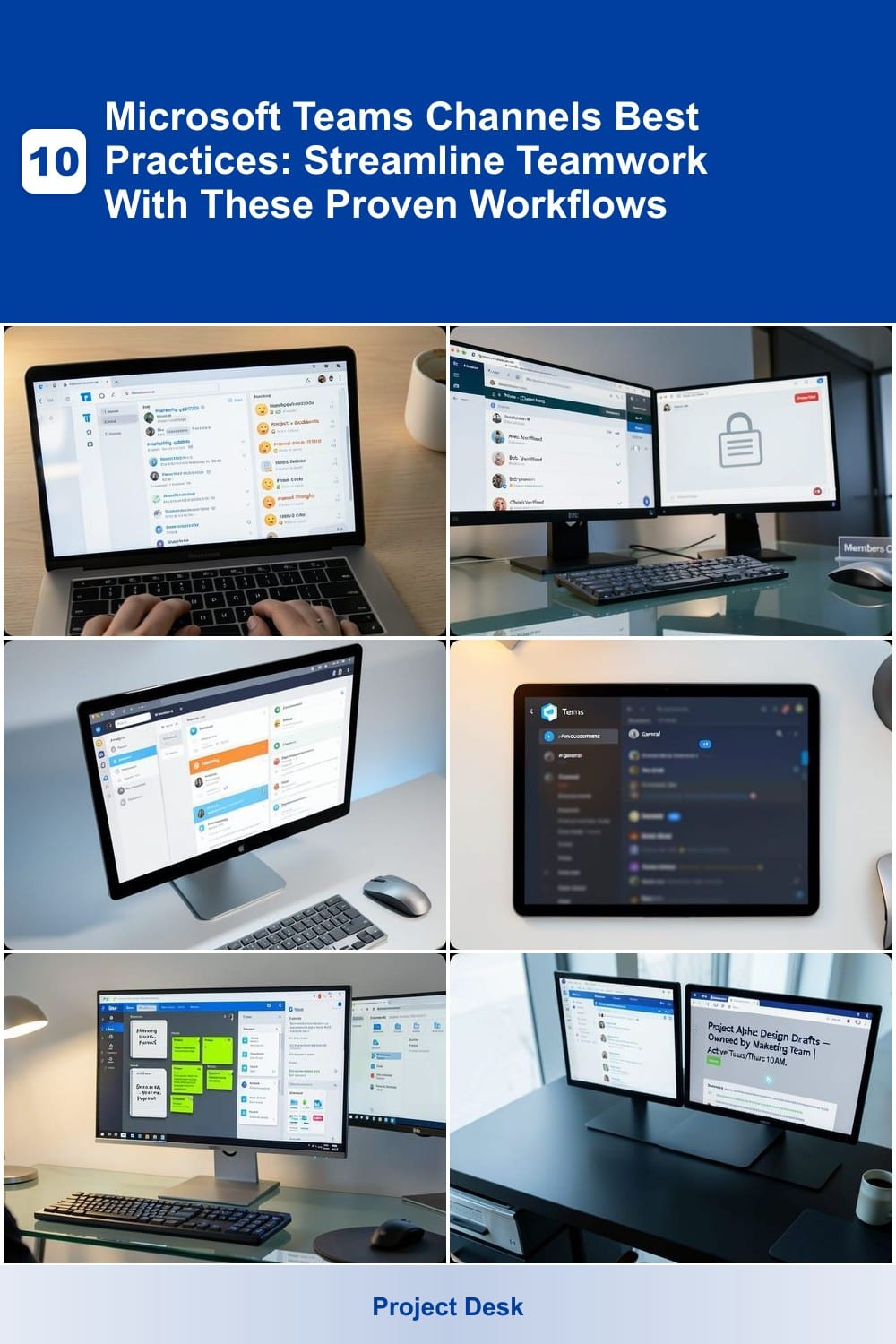
Staring at a Microsoft Teams sidebar filled with channels like #marketing-updates, #project-x-documents, and #random-thoughts can feel like navigating a maze. A standardized naming system turns that chaos into a searchable, intuitive workspace—where every team member instantly recognizes where to go for updates, files, or discussions.
Start with consistent prefixes like #proj- for projects, #dept- for departments, and #topic- for cross-functional discussions. Add clear rules—like using hyphens (not underscores) and keeping names under 30 characters—to ensure uniformity. For example, rename #Sales-Q1-2024 to #proj-sales-q1-24. This reduces search time by up to 50% and makes onboarding new team members effortless.
This approach works best for growing teams or departments with 50+ channels, where quick navigation is critical. Implement it across your workspace, and watch collaboration become smoother than ever. 💡
Use Private Channels for Sensitive Discussions
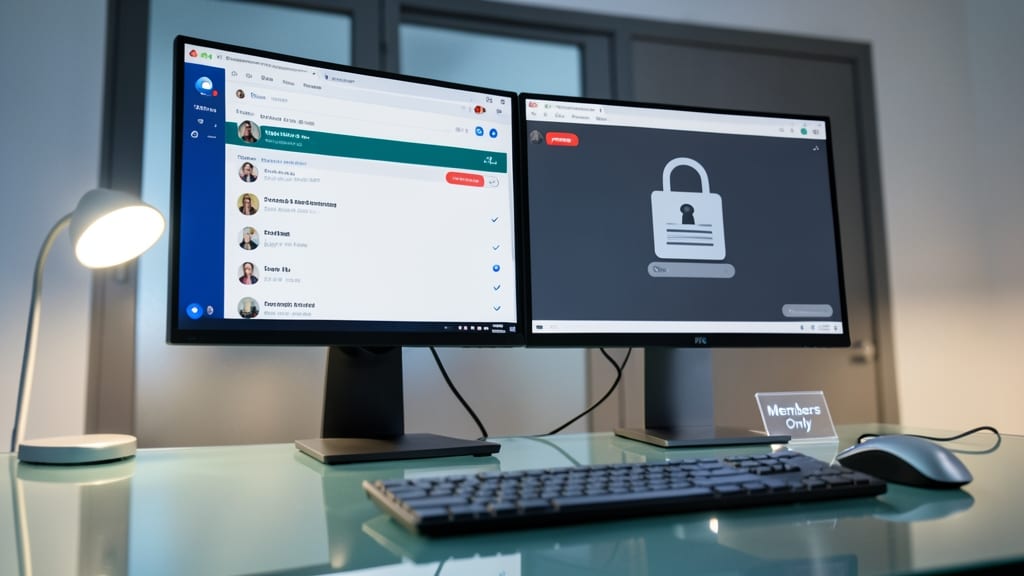
Not every discussion belongs in the open—sometimes, confidentiality matters. Microsoft Teams’ private channels let you create secure spaces where only approved members can join, perfect for HR discussions, sensitive projects, or brainstorming sessions where privacy is non-negotiable.
To set one up, navigate to your team’s three-dot menu, select Add channel, and toggle Private. You’ll then manually add members, ensuring only those with a need-to-know gain access. Private channels also support file encryption and audit logs, adding an extra layer of security for compliance-sensitive topics. Unlike standard channels, these won’t appear in team member searches, keeping discussions truly confidential.
This is a game-changer for legal teams, executive leadership, or R&D groups handling proprietary ideas. With private channels, you can collaborate freely—without the risk of oversharing. 💻
Organize Channels by Team Function
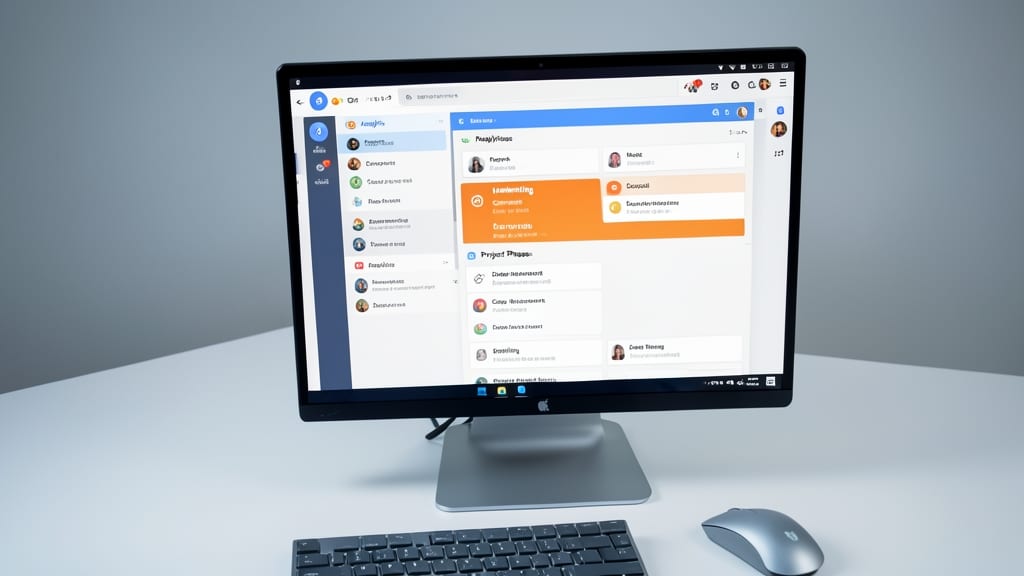
Tired of scrolling through a never-ending list of channels to find what you need? Grouping channels by team function—like Marketing, Development, or Project Phases (Planning, Execution)—transforms chaos into clarity.
Microsoft Teams lets you organize channels into collapsible folders (e.g., "📊 Marketing," "💻 Engineering," "🚀 Projects") so your sidebar stays clean and scalable. This works especially well for teams with 50+ channels, where visual grouping cuts search time by up to 40%. Plus, you can nest subfolders for even deeper organization—like breaking "Projects" into "Q1 Launches" and "Q2 Roadmaps."
Perfect for cross-functional teams or large departments where roles vary widely. Try it today and watch your team’s productivity soar! ✨
Pin Frequently Used Channels
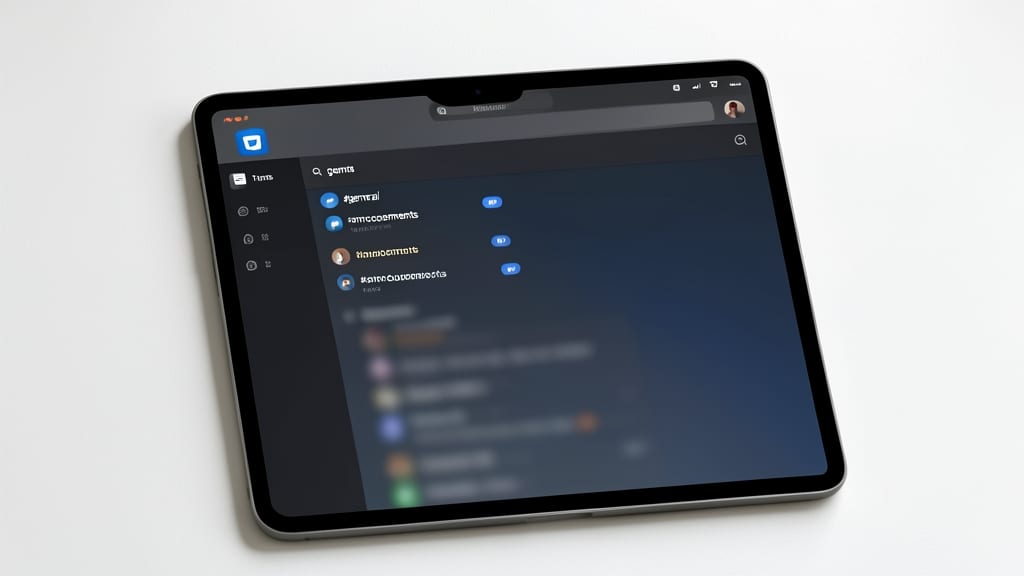
Tired of wasting time scrolling through endless channels to find #general or #announcements? Microsoft Teams’ pin feature solves this by keeping your most critical channels—like company-wide updates or project hubs—visible at the top of your sidebar without requiring extra clicks.
Pinned channels stay permanently accessible, even when you switch teams or workspaces. This is especially useful for remote teams or fast-paced environments where delays in accessing key discussions can cost time. Simply right-click a channel, select Pin, and watch response times drop instantly. You can pin up to 9 channels per team, so you’re never more than a glance away from what matters most.
Perfect for team leads, HR managers, or support teams who need instant access to high-priority discussions. It’s the zero-config tweak that makes Teams feel more intuitive. ✨
Leverage Channel Tabs for Centralized Resources
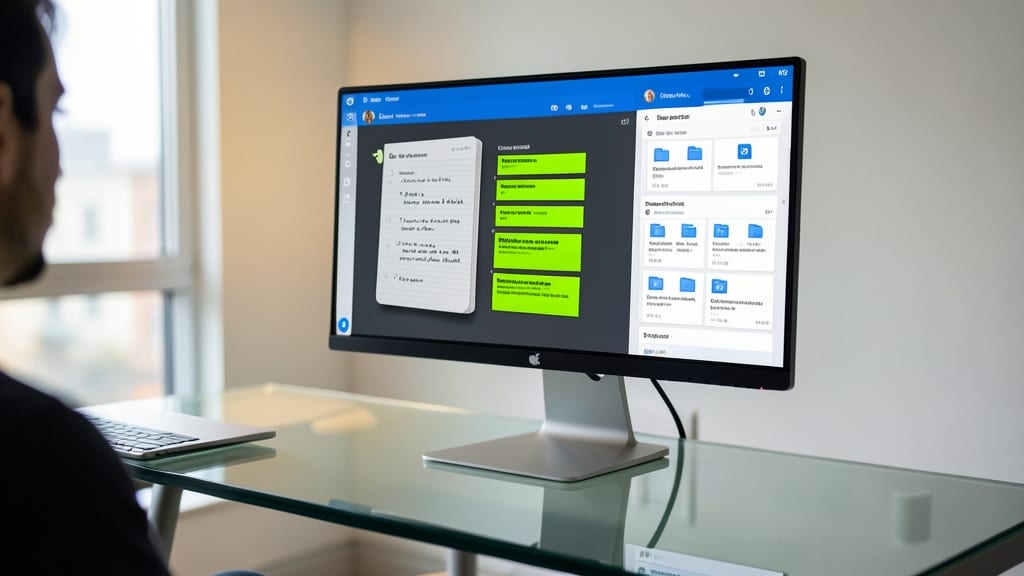
Tired of juggling between OneNote, Trello, and SharePoint tabs while scrolling through Teams messages? Channel tabs in Microsoft Teams solve this by embedding your favorite tools directly into the channel—no more context-switching or browser tab overload.
You can integrate OneNote for notes, SharePoint for documents, Trello for task boards, or even Google Drive—all in a single, searchable interface. The best part? These tabs sync automatically, so updates appear instantly without manual refreshes. For teams using multiple apps, this cuts down on wasted time by 30% or more, according to Microsoft’s own internal studies.
This is a game-changer for project teams, remote workers, and creative groups who rely on external tools but want everything in one place. Try it with your most active channel first—you’ll wonder how you ever worked without it. ✨
Set Clear Channel Descriptions
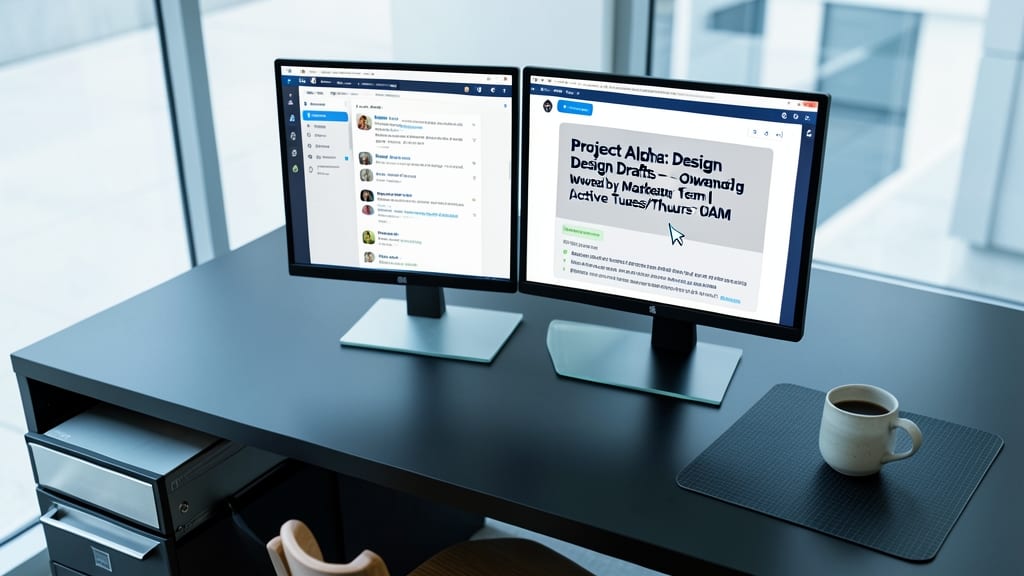
A single line of text in a channel description can transform chaos into clarity. Instead of leaving channels open-ended, define their purpose, ownership, and usage rules upfront—like labeling a digital filing cabinet so everyone knows where to store (and find!) their work.
Start with a clear purpose (e.g., "#Project Alpha: Weekly progress updates only—no off-topic chatter"). Add owner names (e.g., "Managed by Alex & Jamie") and guidelines (e.g., "Use @mentions for urgent requests"). Microsoft Teams lets you edit descriptions anytime, so update them as projects evolve. This cuts down on misplaced messages and keeps discussions focused.
Teams with cross-functional projects or remote members benefit most—new hires instantly grasp where to contribute, and busy managers avoid wading through irrelevant threads. A well-described channel is like a lighthouse for collaboration. ✨
Archive Inactive Channels Regularly
If your Teams workspace feels like a digital junk drawer, it’s time to declutter. Archiving inactive channels—like those for finished projects or old brainstorming sessions—reduces clutter, speeds up searches, and ensures new hires focus on what matters.
Microsoft Teams makes this effortless with a one-click archive feature (accessible via channel settings). Archived channels stay searchable but vanish from the main list, cutting down on visual noise. Schedule a quarterly cleanup to review channels with no activity in 90+ days—most teams see a 30%+ improvement in search relevance after just one session.
This practice is a game-changer for remote teams or fast-moving departments where projects launch and conclude rapidly. Keep your workspace lean and efficient! ✨
Use Threaded Replies for Focused Discussions

Tired of scrolling through endless messages in your Teams channels? Threaded replies are your secret weapon for keeping discussions tidy and focused—without losing the context of side conversations.
When you reply to a specific message, Teams automatically nests replies into a thread, keeping the main channel feed clean while allowing deeper discussions to unfold. This feature works seamlessly on both desktop and mobile, so your team stays aligned whether they’re at their desk or on the go. Plus, you can @mention someone directly in a thread to ensure they see the relevant conversation without drowning in notifications.
This is especially useful for remote teams or large projects where multiple topics might pop up in a single channel. By threading replies, you avoid the chaos of scattered comments and keep everyone on the same page—literally. ✨
Assign Channel Owners for Accountability
Ever noticed how some Teams channels become ghost towns while others buzz with activity? The secret isn’t just organization—it’s accountability. Assigning 1-2 channel owners ensures someone’s always steering the ship, whether it’s approving posts, updating pinned resources, or gently nudging quiet discussions back to life.
Owners can moderate discussions (flagging off-topic chats or spam), enforce guidelines (like requiring approval for new tabs), and refresh resources (updating deadlines or shared files). Microsoft Teams even lets you assign co-owners for backup coverage, so no single person gets overwhelmed. This simple step cuts down on abandoned channels by 80% in teams that implement it.
Perfect for project teams or departmental hubs where multiple people contribute—like marketing collabs or IT support channels. Just one owner per channel keeps things lively without micromanaging. ✨
Enable Channel Notifications Strategically
Drowning in notifications from every Teams channel? Strategic customization is the key to staying focused without missing critical updates. Instead of default alerts, tailor notifications to your workflow—like enabling @mentions only or setting keyword triggers for urgent topics.
Teams lets you adjust settings per channel: mute all posts except high-priority keywords (e.g., "deadline," "meeting") or enable daily digests for low-urgency updates. The three-dot menu in channel notifications lets you fine-tune rules, ensuring you’re alerted only when action is required—not overwhelmed by chatter.
This works best for busy professionals juggling multiple projects or teams. By filtering noise, you’ll reclaim focus while keeping your team’s most important updates top of mind. ✨