
Tip & Trick
Microsoft OneNote 2013 remains a powerhouse for digital note-taking, but most users only scratch the surface of its capabilities. These seven underutilized tips and tricks will transform how you organize information, collaborate, and automate workflows—saving you hours each week.
Quick Capture with Windows Hotkey
Struggling to remember that brilliant idea from a webpage or important meeting detail? OneNote 2013’s Quick Capture feature lets you snatch any text, image, or web snippet in seconds—no copying, pasting, or app-switching required. Just press Win + S, select what you need, and it’s instantly saved to your notebook.
The magic happens behind the scenes: OneNote automatically crops images, extracts text, and even preserves formatting from web pages. You can save entire screenshots, highlight specific sections, or grab text from PDFs—all without leaving your workflow. The best part? It works across Windows 7 and later, so no upgrades needed.
This is a lifesaver for researchers, students, or professionals who multitask across apps. Never lose a fleeting thought again—just capture it instantly. ⚡
Handwriting to Text Conversion

Still clinging to pen and paper for notes but tired of digging through stacks to find key details? OneNote 2013’s handwriting-to-text conversion turns your scribbles into searchable digital text—no extra apps needed. Simply write your notes as usual, then right-click the ink and select Copy Text from Picture to instantly convert handwritten words into editable text.
The process works with Windows 8 or later and supports both handwritten notes and printed text. You can even customize the OCR engine to recognize specialized terms (like technical jargon or project codes) for higher accuracy. The converted text retains formatting, making it easy to copy, edit, or search later.
Perfect for students transcribing lectures, meeting attendees reviewing notes, or professionals blending handwriting with digital workflows. Never lose a note again—just digitize it in seconds. ✨
Tagging System for Instant Search
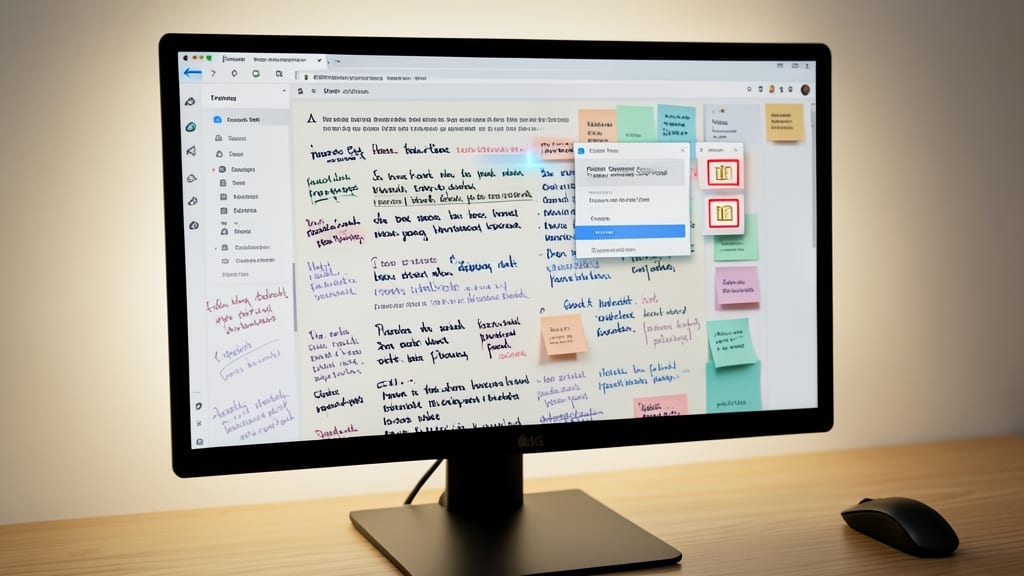
Tired of drowning in a sea of notes with no way to find what you need? OneNote 2013’s tagging system lets you label content with custom tags like “Action Item” or “Reference”, instantly filtering your notebook like a search engine for your brain.
Create tags in seconds by right-clicking text or using the Tag Picker in the ribbon. Assign colors (red for urgent, blue for notes) to visually sort ideas at a glance. The real magic? Use the Search Tags feature to pull up every note tagged “Client Follow-Up” in one click—no more scrolling through pages.
Perfect for project managers, researchers, or anyone juggling multiple tasks. Turn your notes from a messy notebook into a searchable knowledge base that adapts to your workflow. ✨
Audio and Video Clips Integration
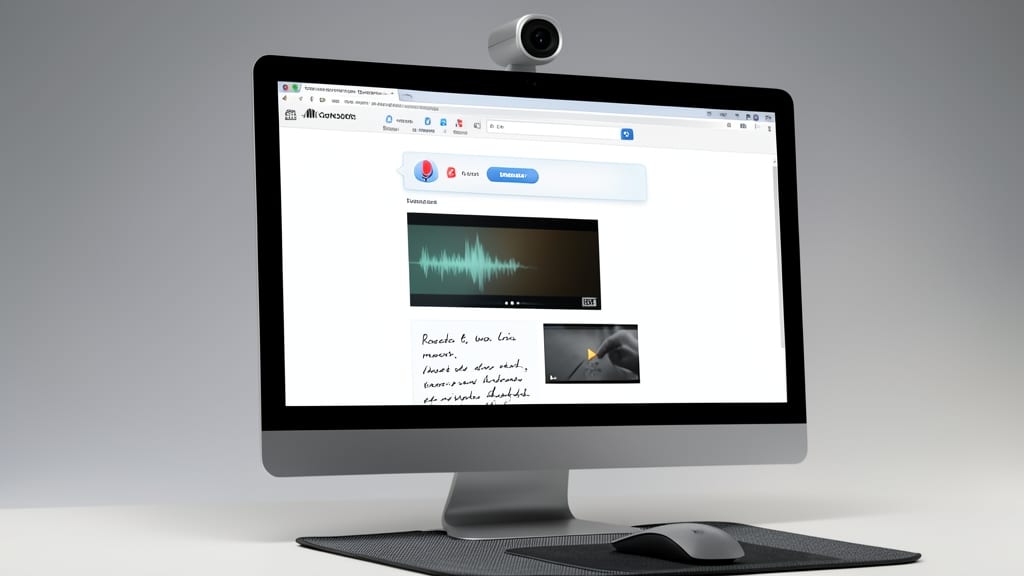
Tired of juggling between apps to record quick voice memos or screen captures? OneNote 2013’s built-in audio and video recording tools let you embed clips directly into your notes—no extra software needed. Simply click the audio or video button in the ribbon, and OneNote handles the rest, storing your recordings neatly alongside typed or handwritten content.
The integration is seamless: record a lecture snippet, a brainstorming session, or even a screen demo while keeping all context in one place. Clips play back inline, with timestamps and waveforms for easy navigation. For tech-savvy users, you can even transcribe audio (via OneNote’s OCR) to turn spoken ideas into searchable text instantly.
This is a game-changer for students, developers documenting code, or project managers capturing meeting highlights. No more scattered files—just a unified workspace where your notes and recordings live together. ✨
Section Groups for Hierarchical Organization
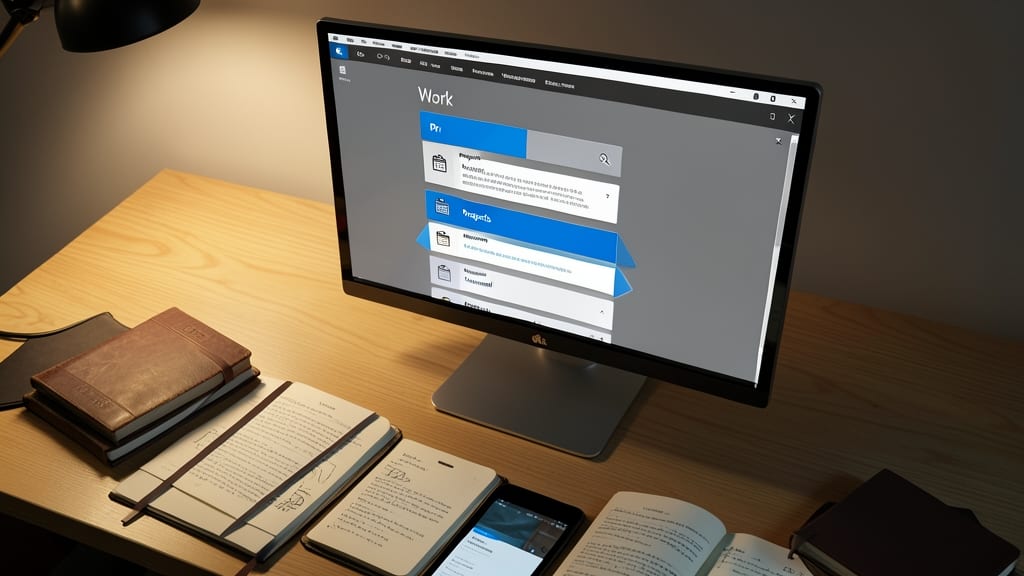
Tired of drowning in a sea of individual notebooks? OneNote 2013’s section groups let you nest related notebooks into collapsible folders—think of it as a digital filing cabinet for your brain. This hidden gem turns your workspace into a true hierarchy, where "Work" might contain subfolders like "Project X," "Client Meetings," and "Research Notes," all neatly tucked away until you need them.
To set it up, right-click any notebook in your list and select "Create Section Group"—then drag and drop notebooks into the new folder. The magic? You can collapse entire groups with one click, keeping your workspace clean while maintaining instant access. Perfect for researchers juggling multiple studies or project managers tracking parallel initiatives across departments.
This feature shines brightest for professionals who thrive on structured chaos—like architects sketching blueprints or lawyers organizing case files. With section groups, your notes finally stay organized without the mental overhead. ✨
Drawing Tools for Diagrams and Flowcharts

Tired of juggling Visio or Miro just to sketch out workflows? OneNote 2013’s built-in drawing tools let you create polished diagrams and flowcharts without leaving the app. The ink-to-shape feature converts freehand scribbles into perfect rectangles, circles, and arrows with a single click—no extra software required.
You’ll love the customizable shapes and connectors, plus the ability to resize objects proportionally with the grid alignment tool. For mind maps, use the hierarchy feature to auto-organize branches, and add color-coded markers to highlight key sections. The best part? Your diagrams stay editable and searchable, just like text.
Perfect for educators, project managers, or anyone who brainstorms visually—no design skills needed. ✨
Offline Access and Sync Settings
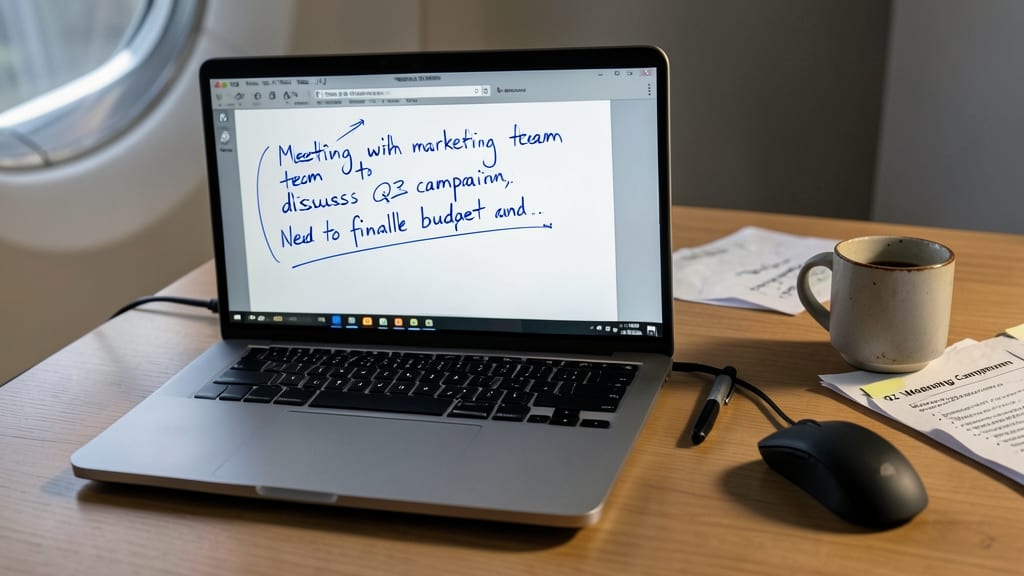
Ever jotted down a brilliant idea on a flight or during a meeting with spotty Wi-Fi, only to panic when your device reconnects? OneNote 2013’s offline-first mode solves this by letting you work uninterrupted—your notes stay local until you’re back online. No more lost inspiration or frantic syncing!
To enable it, go to File > Options > Advanced and check "Allow offline access." This triggers automatic sync when reconnected, preserving formatting, images, and even handwritten notes. For extra control, adjust the sync frequency under Account Settings—choose "Sync automatically" for hands-off reliability or "Sync when I start OneNote" to conserve bandwidth. The system also handles conflicts by merging changes intelligically.
Perfect for travelers, field researchers, or anyone with unreliable internet, this feature turns OneNote into a reliable digital notebook—no cloud dependency required. ✨