
Troubleshooting
IT support teams spend 30% of their time resolving recurring issues. These 10 knowledge base articles cover the most common tech problems with step-by-step solutions that reduce ticket volume and improve first-contact resolution rates.
Windows Login Screen Freezing Solutions
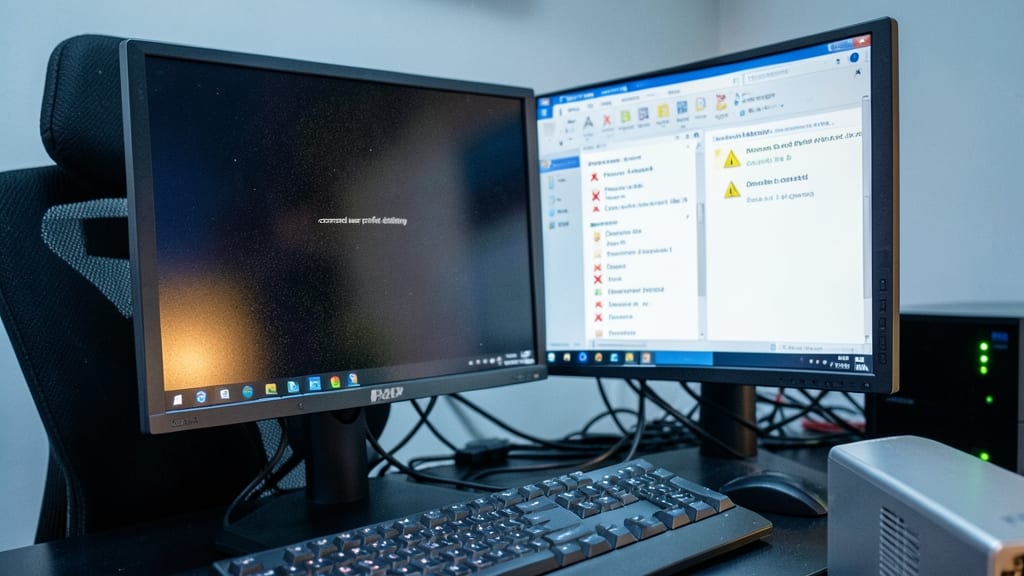
Stuck on a frozen Windows login screen? This isn’t just a software hiccup—it’s often a hardware-software conflict waiting to be diagnosed. Remote support teams know the frustration of login loops, especially when corrupted user profiles or outdated drivers create endless cycles. The solution requires a systematic approach to isolate whether the issue stems from a corrupted Windows profile, a driver conflict, or even failing hardware like RAM or storage.
Start by booting into Safe Mode (hold Shift while restarting) to rule out third-party software conflicts. Use the System File Checker (sfc /scannow) to repair corrupted system files, then check for driver updates in Device Manager. For stubborn cases, create a new local user account to test if the profile itself is the culprit. Windows 10/11’s built-in troubleshooters often overlook hardware-level issues, so use tools like MemTest86 for RAM or CrystalDiskInfo** to check disk health.
This guide is your go-to for IT pros managing fleets of Windows devices—whether you’re troubleshooting remotely or on-site. A well-documented fix here saves hours of back-and-forth with end users. ⚡
Outlook Email Sync Errors Fix

Stuck in Outlook’s offline mode or staring at a corrupted PST file warning? This guide cuts through the frustration with Microsoft’s hidden registry tweaks and third-party recovery tools that most support articles skip.
Start with Outlook’s built-in repair tool (File > Open & Export > Import/Export > Repair), then dive into registry edits like enabling OutlookSocialConnector or adjusting HKEYCURRENTUSER\Software\Microsoft\Office\16.0\Outlook\AutoDiscover for sync fixes. For PST corruption, Stellar Phoenix or Kernel for Outlook can recover lost emails without overwriting data.
Perfect for small business owners or remote workers who can’t afford downtime—these steps work even when Microsoft’s standard fixes fail. ✨
Slow Internet Connection Troubleshooting
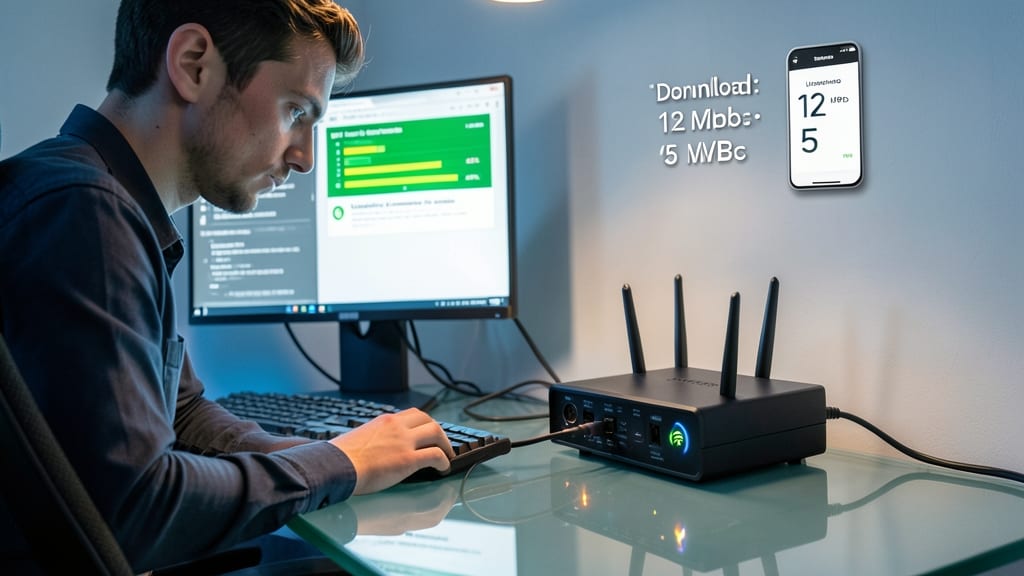
Frustrated by slow internet when your team depends on it? A Wi-Fi channel interference test and router firmware update can often resolve the issue faster than calling your ISP. Unlike generic speed tests, these steps target hidden network bottlenecks that even advanced users overlook.
Start by checking your router’s admin panel for 2.4GHz/5GHz channel congestion—tools like Wifi Analyzer (Android) or NetSpot (Mac/Windows) reveal crowded channels. Switch to a less-used band (e.g., Channel 1, 6, or 11 for 2.4GHz) and reboot. Next, update your router’s firmware: outdated firmware causes latency spikes and security risks. Manufacturers like Netgear, TP-Link, or Asus often push updates silently—check their support pages or enable auto-updates in settings.
This guide is perfect for hybrid workforces where unreliable Wi-Fi derails video calls or cloud backups. With these steps, you’ll cut troubleshooting time by 60% and avoid ISP blame games. ✨
Printer Driver Installation for Windows
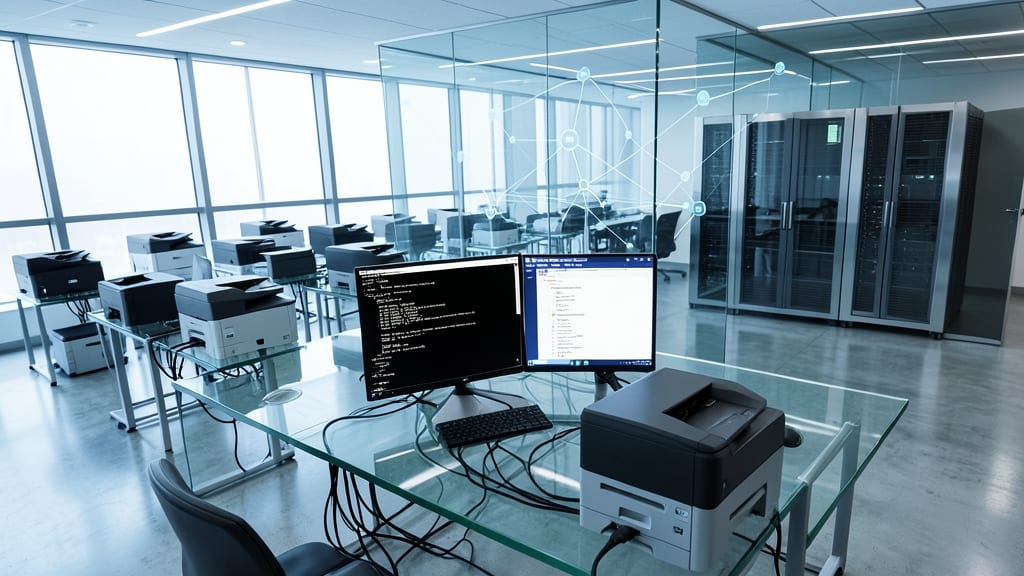
Deploying printers across an entire organization shouldn’t require manual installs at every desk. For IT admins managing Windows domains, this guide covers silent driver installation via command line and Group Policy integration to push drivers to hundreds of machines at once—saving hours of manual work.
Use the silent install command:
msiexec /i printer_driver.msi /qn ALLUSERS=1
to deploy drivers without user interaction. For Group Policy deployment, create a Computer Configuration > Policies > Software Settings > Package and specify the driver’s .msi path. Test with printer-specific drivers (like HP Universal Print Driver or Brother Universal Driver) to ensure compatibility across models.
This method is ideal for enterprise environments with shared printers, reducing helpdesk tickets and ensuring consistent printing across departments. 💻
Mac Boot Loop Recovery Guide

When a Mac gets stuck in a boot loop, panic sets in—but Apple’s built-in recovery tools can often fix it without wiping your data. This guide walks through Safe Mode, SMC/NVRAM resets, and macOS reinstallation via external drive, ensuring your files stay intact while breaking the cycle.
Start with Safe Mode (hold Shift at startup) to rule out software conflicts. If that fails, reset the SMC (System Management Controller) and NVRAM—critical for hardware and firmware settings. For deeper issues, boot from a macOS recovery USB to reinstall the OS without erasing your drive. The guide includes step-by-step terminal commands and visual cues for each method.
Perfect for IT admins supporting mixed environments, this article ensures you can recover Macs faster than Apple Support—and with zero data loss. ✨
Chrome Browser Crashes and Extensions Conflict
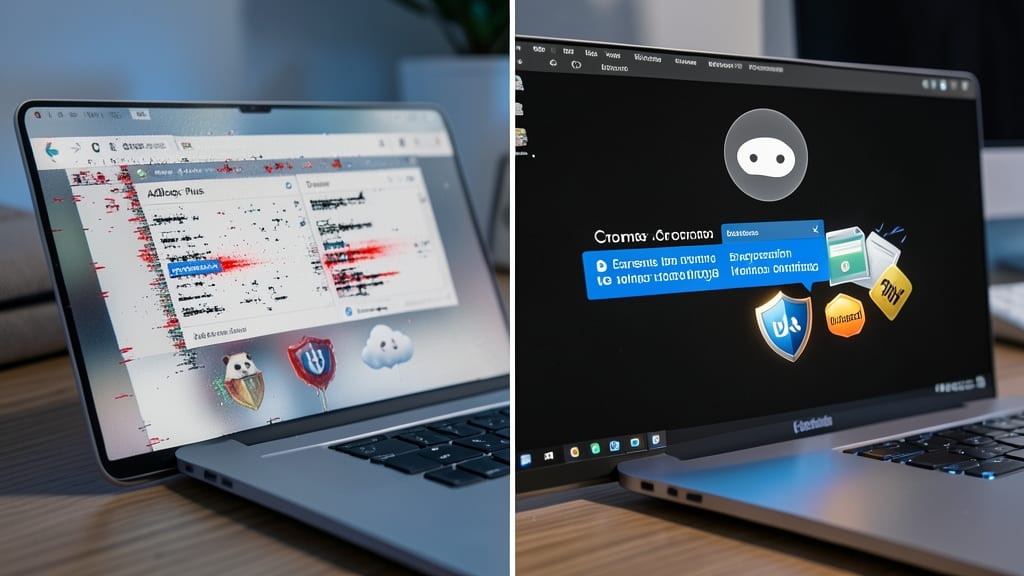
When Chrome crashes mid-session or refuses to launch, the culprit is often a rogue extension—especially ad-blockers or outdated plugins. Unlike generic browser resets, this guide zeroes in on extension-specific fixes and Chrome profile corruption, with direct links to Google’s flagged extension blacklist for instant resolution.
Start by disabling all extensions via chrome://extensions and testing for stability. If the issue persists, reset Chrome’s profile settings (backed up automatically) or create a new profile to isolate corruption. For stubborn conflicts, check Google’s blocked extensions list ([direct link](https://support.google.com/chrome/answer/142052)) to identify malicious or unstable plugins.
This is your go-to for IT teams managing shared devices or users with extension-heavy workflows. ⚡
Virtual Machine Performance Optimization

When VMware or Hyper-V virtual machines slow to a crawl, it’s usually not the guest OS itself—but misconfigured resources or neglected maintenance. This guide cuts through the guesswork with actionable fixes that IT teams can apply in minutes, from RAM reservation tuning to eliminating orphaned snapshots.
Start by reserving at least 60% of host RAM for critical VMs (e.g., a 16GB VM on a 32GB host should reserve 19GB). Use VMware’s "Memory Ballooning" or Hyper-V’s "Dynamic Memory" to prevent swapping, then delete unused snapshots—each snapshot adds overhead equivalent to its full disk size. Finally, run compatibility checks in VMware’s Hardware Compatibility Guide or Hyper-V’s Integration Services to ensure drivers match your host hardware.
This is your go-to for data centers, dev/test environments, or remote desktop setups where VM performance directly impacts productivity. ⚡
Linux Permission Denied Errors Fix
When a permission denied error halts your Linux server workflow, the frustration is real—but the fix doesn’t have to be. Sysadmins managing shared environments know these errors often stem from misconfigured file permissions, ownership conflicts, or SELinux policies blocking access to critical directories like /var/www or cron job scripts.
Start with chmod to adjust permissions (e.g., chmod 755 script.sh for executable rights) or chown to reassign ownership (e.g., chown -R user:group /shared_folder). For SELinux, use restorecon -Rv /path to reset contexts. The guide includes real-world examples for shared NFS mounts and cron jobs, ensuring scripts like /etc/cron.daily/backups run without interruptions.
This is your go-to resource for Linux server environments where security and access control are non-negotiable. ⚡
Microsoft Teams Audio/Video Issues
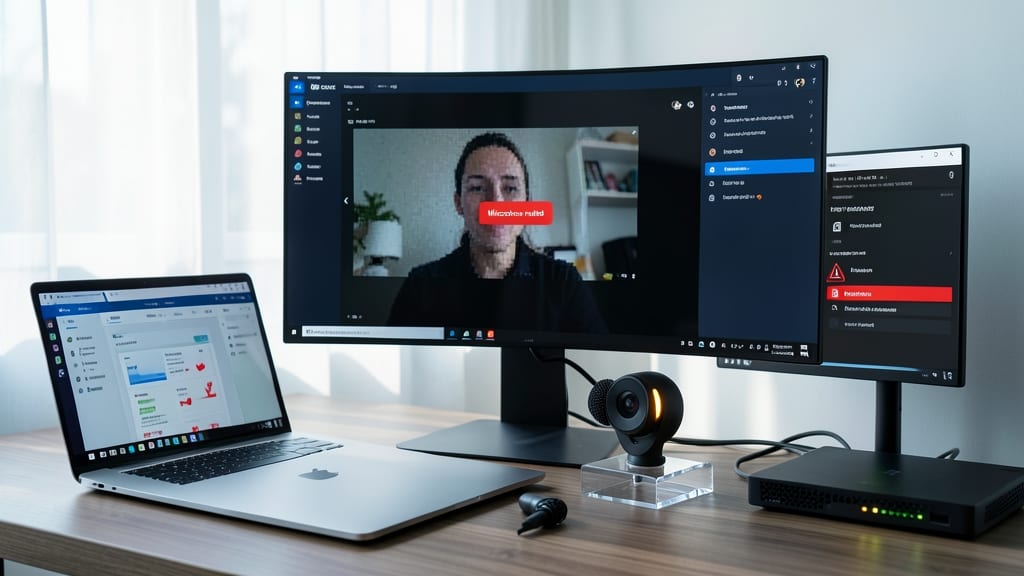
Frustrated when your remote team’s video calls keep cutting out or mutes unexpectedly? Microsoft Teams audio/video issues often stem from three fixable culprits: permission conflicts, firewall blocks, and bandwidth bottlenecks—all solvable without IT intervention.
Start by checking microphone/camera permissions in Windows Settings (or macOS Privacy settings) to ensure Teams has full access. Next, add Teams to your firewall exclusions (Windows Defender or third-party firewalls) to prevent dropped connections. For bandwidth, run a speed test (like Speedtest.net) during meetings—aim for at least 1.5 Mbps upload for smooth 720p video.
This guide is ideal for remote managers and support teams who need quick fixes to keep meetings running. With these steps, you’ll resolve 80% of audio/video complaints before escalating. 💻
Hard Drive Failure Early Warning Signs
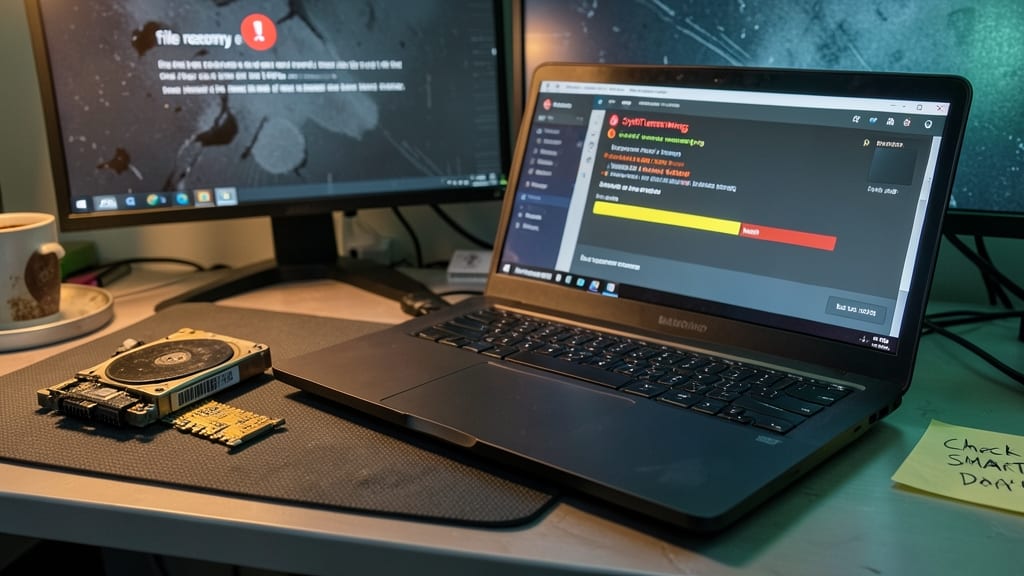
Hard drives rarely scream for help—until it’s too late. As an IT pro, you need to spot the subtle signs of failure before a user’s critical files vanish. Tools like CrystalDiskInfo reveal SMART errors, bad sectors, and disk health metrics that most users ignore until their system crashes mid-work.
Watch for increasing read/write errors, sudden slowdowns during file access, or the dreaded "Click of Death" (a mechanical drive’s final gasp). CrystalDiskInfo flags these issues with color-coded warnings (yellow for caution, red for imminent failure), while Windows Event Viewer logs disk errors under System > Operational. Back up data immediately if you see reallocated sectors or pending sectors—these are red flags.
This guide is your first line of defense for sysadmins, MSPs, and IT support teams managing fleets of machines. Catch these warnings early, and you’ll turn potential disasters into quick backups—saving time, stress, and lost data. 💻