
Software
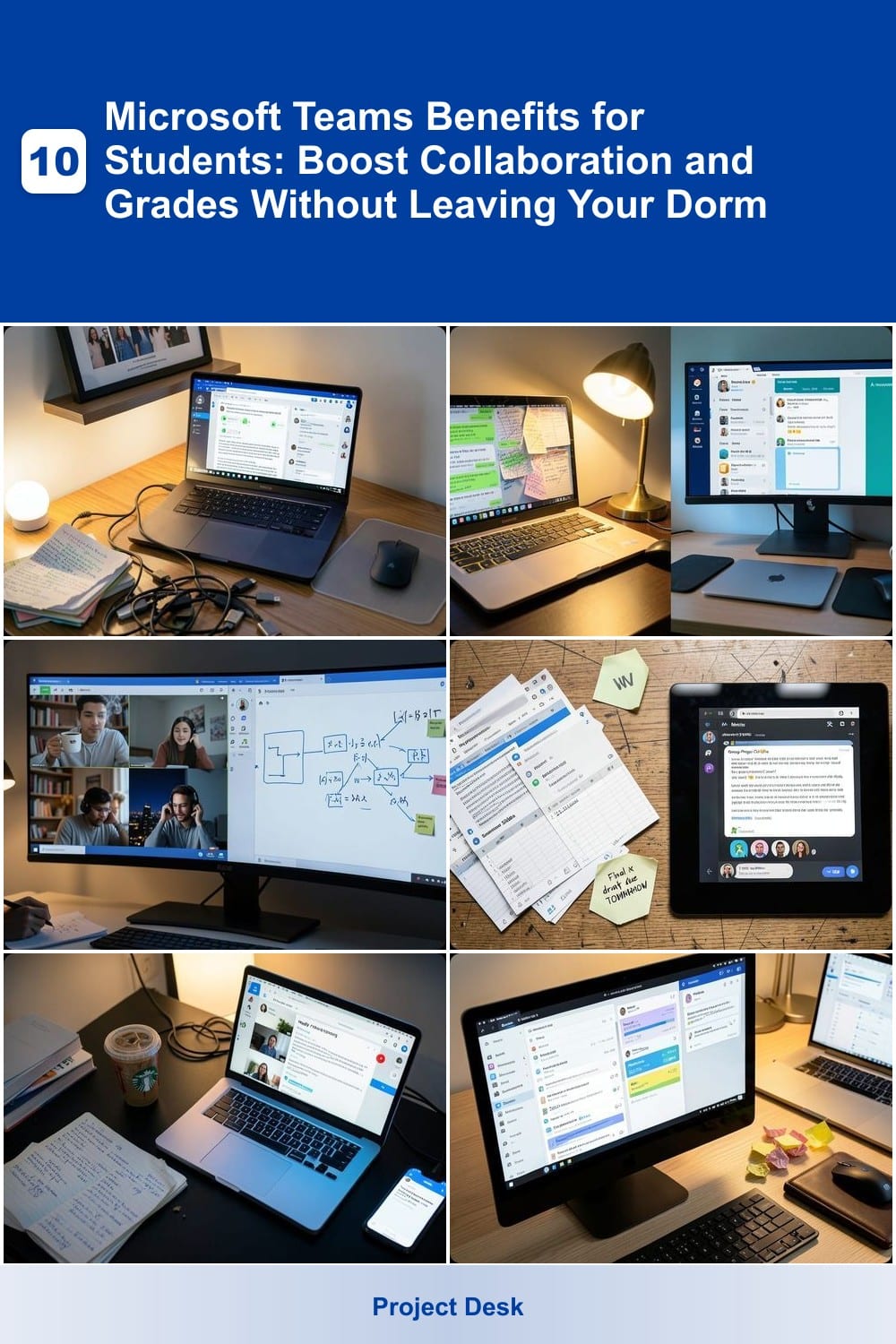
Microsoft Teams isn’t just for professionals—it’s a game-changer for students balancing coursework, group projects, and social life. These 10 benefits show how Teams can streamline your academic workflow, improve collaboration, and even cut study time by half—all from your laptop or phone.
Real-Time Group Project Collaboration
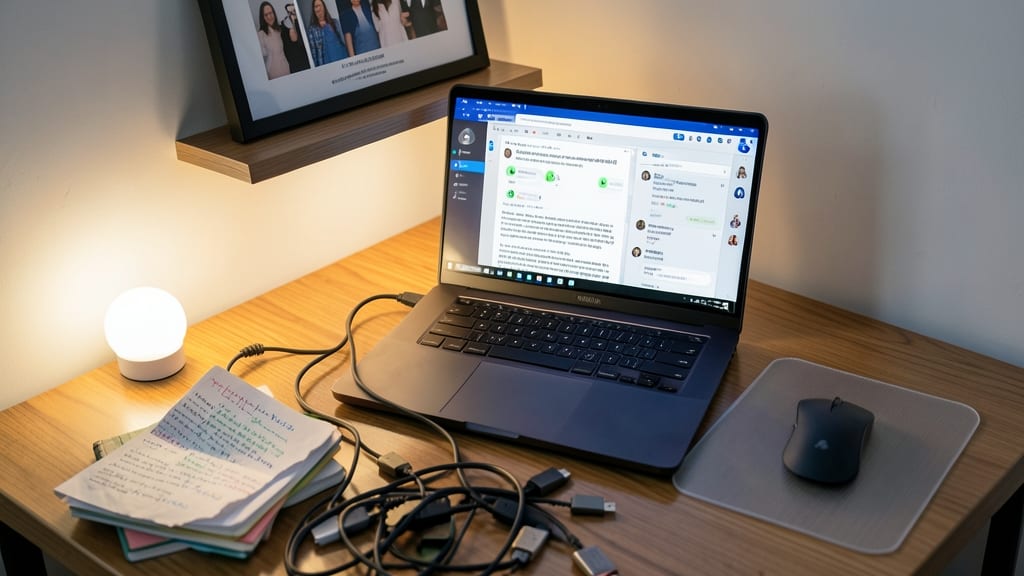
Tired of group projects derailed by lost emails and conflicting file versions? Microsoft Teams’ real-time collaboration turns chaotic workflows into smooth, organized teamwork. With simultaneous document editing, every team member can contribute to a Word doc, Excel sheet, or PowerPoint—seeing each other’s changes in real time, just like sitting together in a library.
The commenting and @mentions features keep discussions focused within the file itself, while version history lets you restore earlier saves if mistakes happen. Need to brainstorm? The whiteboard tool lets your group sketch ideas live, perfect for STEM projects or creative assignments. Plus, integrated task lists inside documents keep deadlines visible to everyone.
This is the ultimate solution for tight deadlines, remote teams, or last-minute edits—whether you’re working on a history paper, coding project, or design portfolio. No more "I thought you sent that!" moments. ⚡
Built-In Classroom Communication Hub
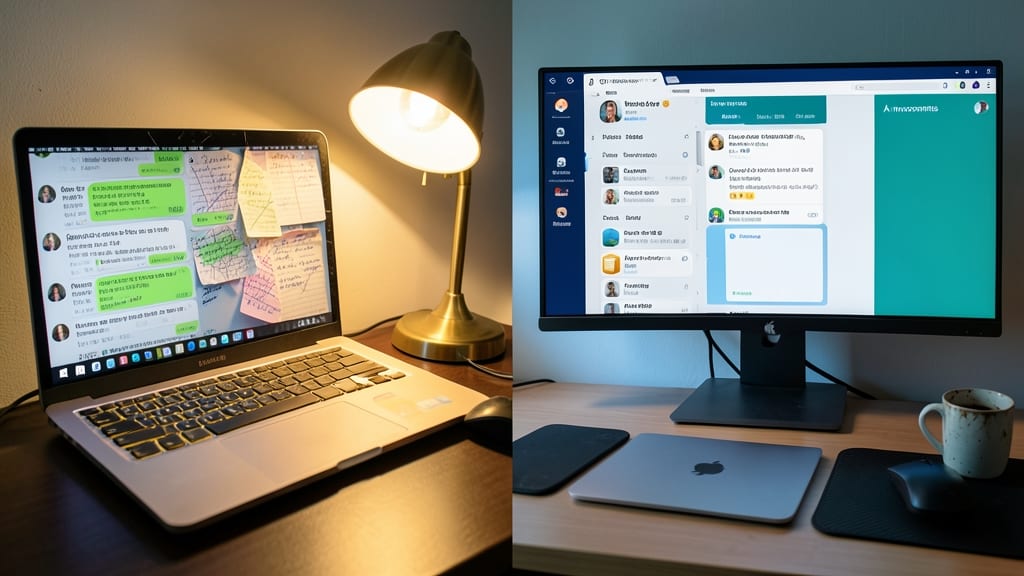
Drowning in WhatsApp group chats where assignments get lost in memes and lecture notes? Microsoft Teams’ classroom channels replace the chaos with a single, searchable hub for all course-related discussions. Unlike scattered apps, it combines announcements, file sharing, and threaded conversations—so you can pin syllabi, share PDFs, and even embed assignments directly in chats.
The search function digs through years of posts to find that one professor clarification from last semester’s exam review. Need to organize study groups? Create separate channels for each class, with file tabs storing lecture slides, group projects, and supplementary readings—all version-controlled. Plus, @mentions ensure your groupmates see urgent updates without drowning in notifications.
This is the ultimate tool for organized students who hate digging through Discord servers or email chains during finals week. Whether you’re reviewing notes with classmates or tracking assignment deadlines, Teams keeps your academic life tidy—no more lost files or missed announcements. 💡
Virtual Study Rooms for Focused Work

Late-night study sessions don’t have to mean staring at your own four walls. Microsoft Teams lets you create private virtual study rooms where you and classmates can work side-by-side—no dorm room required. The whiteboard tool lets you sketch equations, diagrams, or brainstorm ideas in real time, while screen-sharing makes troubleshooting code or PowerPoint slides effortless.
Set up a secure, password-protected study space in seconds, complete with customizable backgrounds (because your virtual bookshelf should match your vibe). Need to focus? Mute your mic and turn on Do Not Disturb mode while keeping the group chat open for quick questions. The integrated timer helps track study sprints, and recorded sessions let you replay key discussions later.
Perfect for group projects, exam prep, or language practice, these virtual pods recreate the energy of a library—without the awkward silence. 💻
Seamless Integration with Office 365
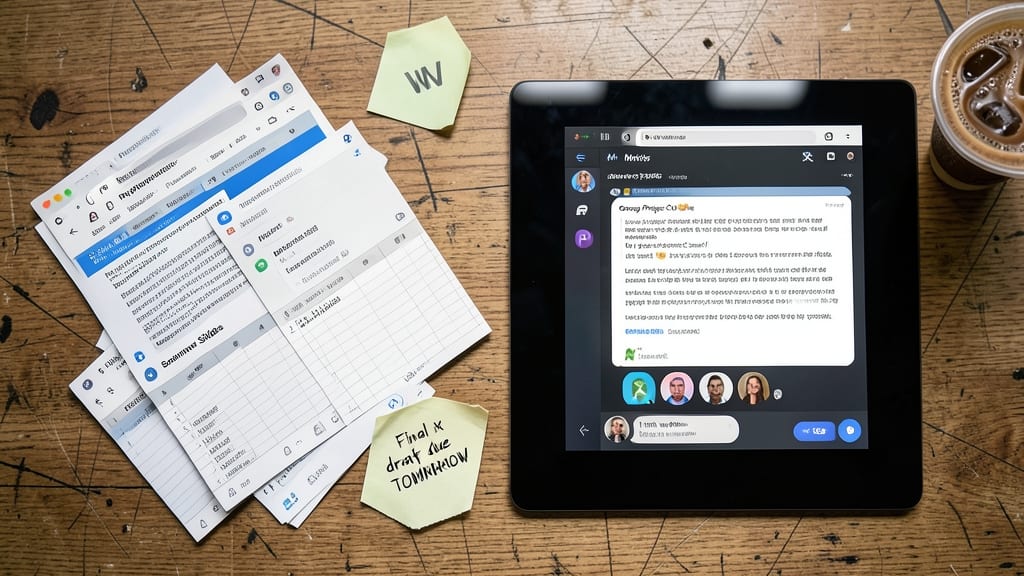
Tired of bouncing between apps while working on group projects? Microsoft Teams eliminates that hassle by embedding Office 365 apps directly into chats and channels. No more juggling Word, Excel, and PowerPoint in separate windows—just open, edit, and save files without leaving the conversation.
With real-time co-authoring, multiple students can edit a Word doc or Excel spreadsheet simultaneously, see changes as they happen, and even track edits with version history. For presentations, embed PowerPoint slides directly into Teams meetings, so everyone stays on the same page—literally. The integration also syncs with OneDrive, so your latest work is always backed up.
This is a game-changer for group assignments where deadlines are tight and last-minute edits are inevitable. Perfect for history papers, lab reports, or business case studies where collaboration is key. ✨
Recorded Lectures and Study Sessions

Ever missed a lecture and spent hours scrambling to catch up? Microsoft Teams solves that with one-click recording of classes, study sessions, and meetings—complete with auto-generated transcripts for easy note-taking and keyword searches.
Simply enable recording in your Teams meeting settings, and the platform saves the session to your OneDrive with searchable timestamps. The live transcript feature turns spoken words into text in real-time, letting you highlight key concepts or share the transcript with classmates who missed the session. Perfect for reviewing complex topics or creating study guides before exams.
This is a game-changer for night owls or students juggling multiple classes—no more frantic note-taking during lectures. Just replay, pause, and focus. ✨
Task and Assignment Management
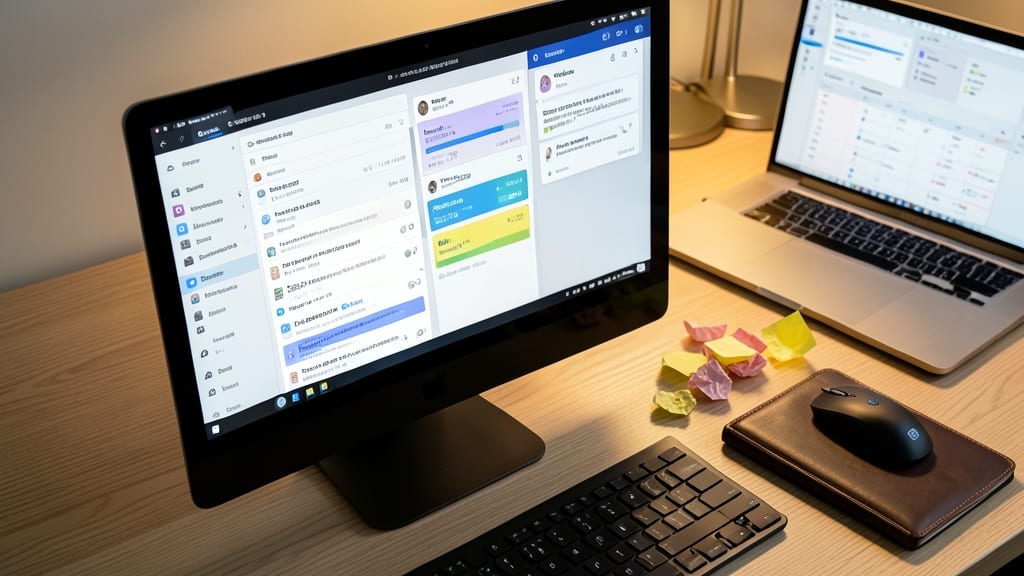
Forget sticky notes and chaotic group chats—Microsoft Teams turns messy to-do lists into a structured task management system with built-in deadlines, reminders, and progress tracking. No more "I thought you were handling that" panic the night before a deadline.
Create shared task lists directly in team channels, assign owners, and set due dates that sync with your calendar. The progress bars show real-time updates, so everyone stays accountable without micromanaging. Need a nudge? Teams sends automated reminders before deadlines, and the @mention feature lets you tag classmates for urgent updates.
Perfect for group projects, research teams, or solo students juggling multiple deadlines, this feature keeps everyone on track—without the stress. 💪
Secure File Sharing Without Email Limits

Forgot to email that 4GB video project to your group? No problem—Microsoft Teams lets you share files up to 2GB per upload (or 10GB with OneDrive integration), crushing email’s 25MB limit. That means your capstone presentation or dataset-heavy research stays intact, no matter how big it gets.
Every file automatically gets a version history, so you can roll back to earlier saves if mistakes happen. Permissions let you control who can edit or just view, keeping your work secure. The 10GB team file storage (free for students) also means no more scrambling for external cloud services.
Perfect for design students sharing large portfolios, STEM groups with data-heavy projects, or anyone tired of "file too large" errors. ⚡
Accessibility Tools for All Learners

Every student deserves equal access to learning—but not all tools are built with accessibility in mind. Microsoft Teams changes that with built-in live captions, screen reader support, and high-contrast modes, ensuring lectures, discussions, and study sessions are fully inclusive for students with hearing, visual, or cognitive disabilities.
Enable live captions in real time to follow conversations word-for-word, even in noisy dorms or during online lectures. The screen reader (compatible with JAWS and NVDA) navigates Teams with keyboard shortcuts, while high-contrast themes reduce eye strain for those with low vision. These features aren’t just checkboxes—they’re game-changers for retaining information and participating fully in group work.
Whether you’re collaborating with a classmate who relies on captions or adjusting your own settings for better focus, Teams removes barriers without extra apps or costs. Perfect for study groups, inclusive classrooms, or solo learners who need flexibility. ✨
Automated Polls and Quizzes
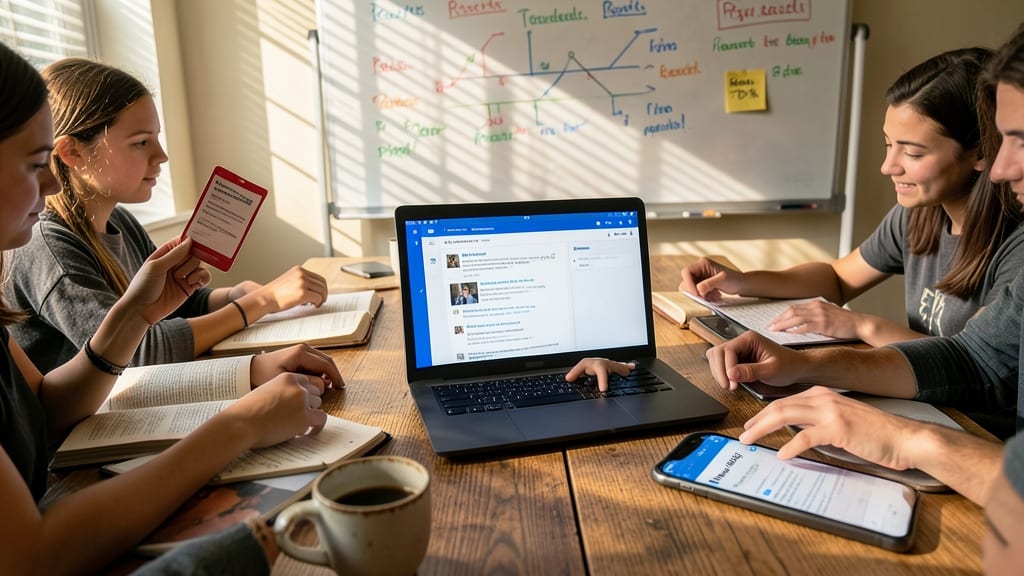
Turn passive study sessions into interactive learning with Teams’ built-in polls and quizzes—your secret weapon for mastering tough concepts before exams. Whether you’re reviewing flashcards or debating historical events, these tools transform group study from silent note-taking to dynamic engagement.
Create real-time polls with just one click, or design custom quizzes with multiple-choice, true/false, or even open-ended questions. Results appear instantly, letting your group identify weak spots—like that confusing chapter on thermodynamics—so you can focus your review. The auto-grading feature saves time, and you can even export results to track progress over time.
Perfect for study groups, TA-led review sessions, or solo learners testing their own knowledge. No extra apps needed—just your free student Teams account and a shared channel to spark lively (and productive) debates. ✨
Free for Students with Education Account

Tired of shelling out cash for student-friendly tools that still hit your wallet? Microsoft Teams flips the script—it’s completely free for students with an institutional email, no credit card required. This isn’t a trial or limited version; you get the full suite of collaboration features without hidden costs.
All you need is your school’s email address (like @student.youruniversity.edu) to unlock unlimited access to channels, file storage, and video meetings. No subscription tiers, no annual fees—just seamless integration with Office 365 apps you already use. Plus, Microsoft’s education program ensures you’re always using the latest version without upgrades.
This is the perfect solution for broke students juggling textbooks and tuition—no more choosing between rent and productivity tools. 💻