
Outlook
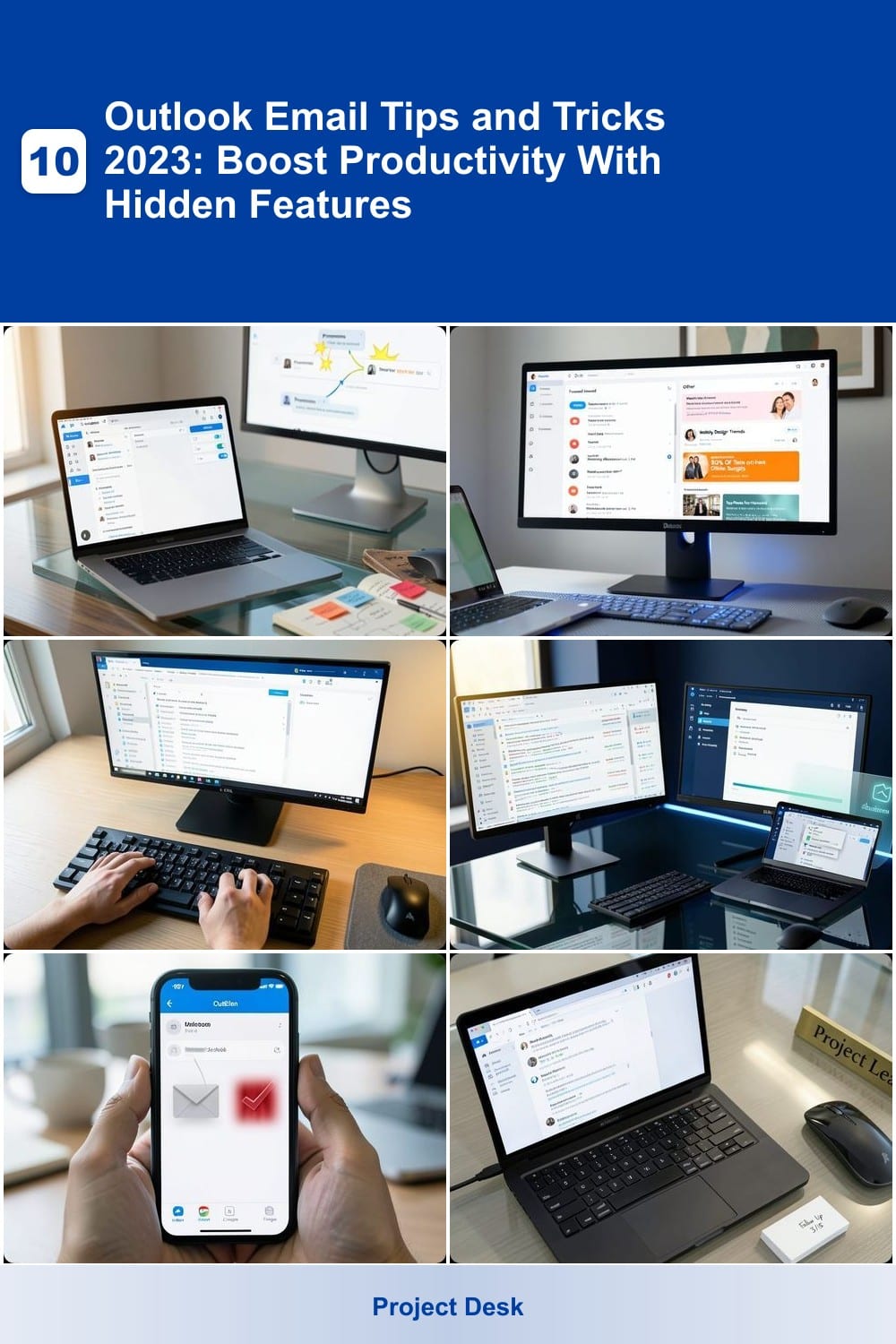
Microsoft Outlook remains a powerhouse for email management, but most users only scratch the surface of its capabilities. These 10 hidden features and productivity hacks will transform how you handle emails, automate repetitive tasks, and reclaim hours in your workweek—all updated for 2023.
Quick Steps for Instant Email Automation
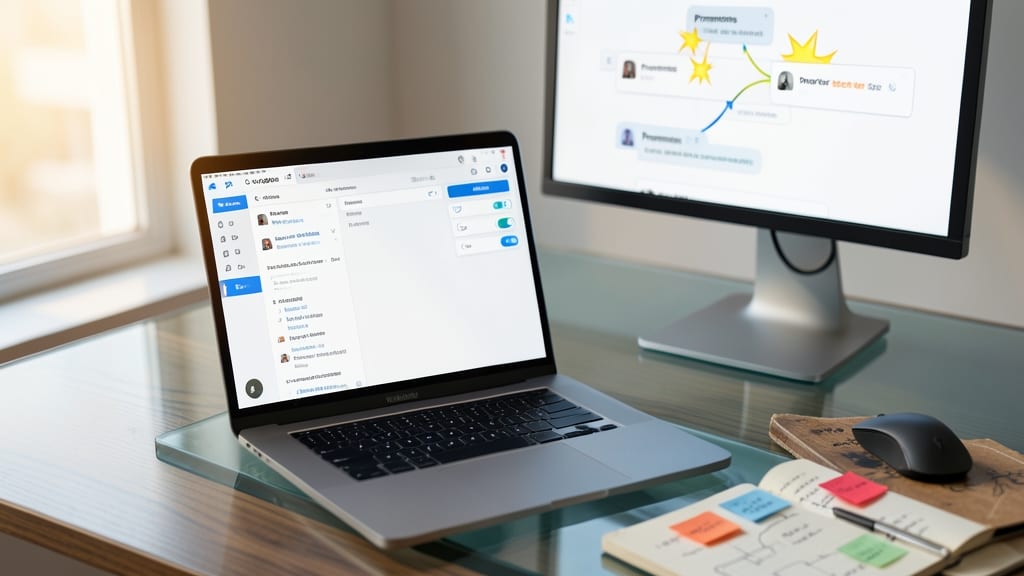
Tired of manually sorting, flagging, and responding to the same types of emails every day? Outlook’s Quick Steps lets you create custom, one-click workflows that handle repetitive tasks—no coding required. This hidden gem turns your inbox into a productivity powerhouse by automating actions like forwarding client invoices to your accounting team or flagging high-priority emails from managers.
With just a few clicks, you can build steps that auto-forward emails from specific senders, move them to designated folders, mark them as high-priority, or even send automatic replies. For example, set up a Quick Step to instantly forward expense reports to your finance folder while cc’ing your manager—saving you 10+ minutes daily. The best part? These workflows sync across Outlook Desktop, Web, and Mobile, so your automation follows you everywhere.
Perfect for small business owners, freelancers, or anyone drowning in repetitive email tasks, Quick Steps turn manual labor into effortless efficiency. Try building one today and reclaim hours in your week. ⚡
Focused Inbox for Zero-Inbox Mastery
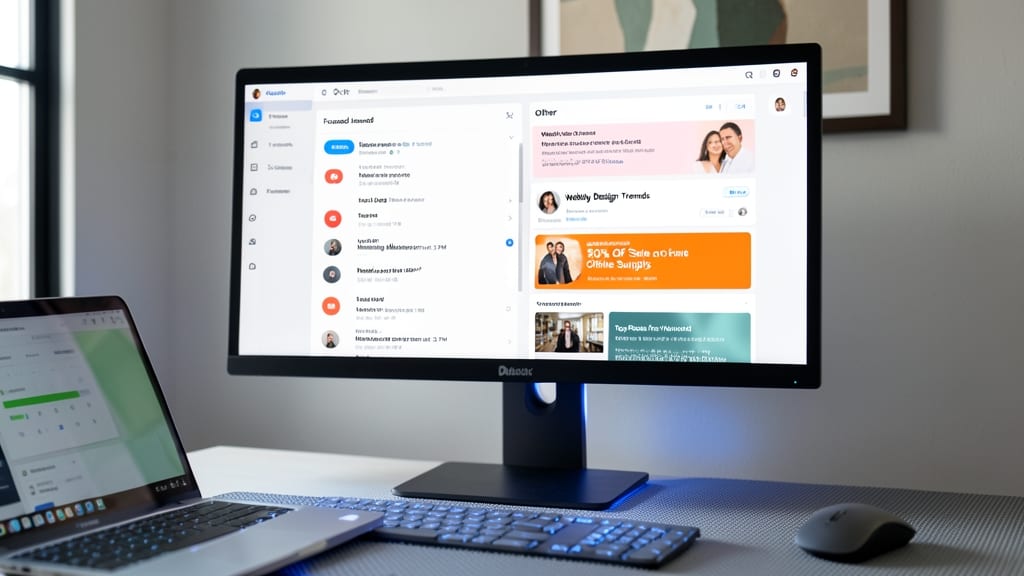
Struggling to separate the urgent from the noise in your inbox? Outlook’s Focused Inbox uses AI to automatically sort emails into two categories: priority messages (like client requests or team updates) and less critical items (like newsletters or promotional offers). Unlike manual folders, this feature learns from your habits—flagging emails you consistently engage with while filtering out distractions.
To enable it, toggle Focused Inbox in View > Show Focused Inbox (or via the dropdown in your inbox). The AI adapts over time, so the more you interact with emails, the smarter it gets. For busy professionals, this cuts inbox time by 30-50%, ensuring you focus only on what truly matters. You can even customize priority rules to exclude certain senders or topics.
Perfect for executives, sales teams, or anyone overwhelmed by email volume, this tool turns clutter into clarity—without requiring manual sorting. 💡
Keyboard Shortcuts to Navigate Faster
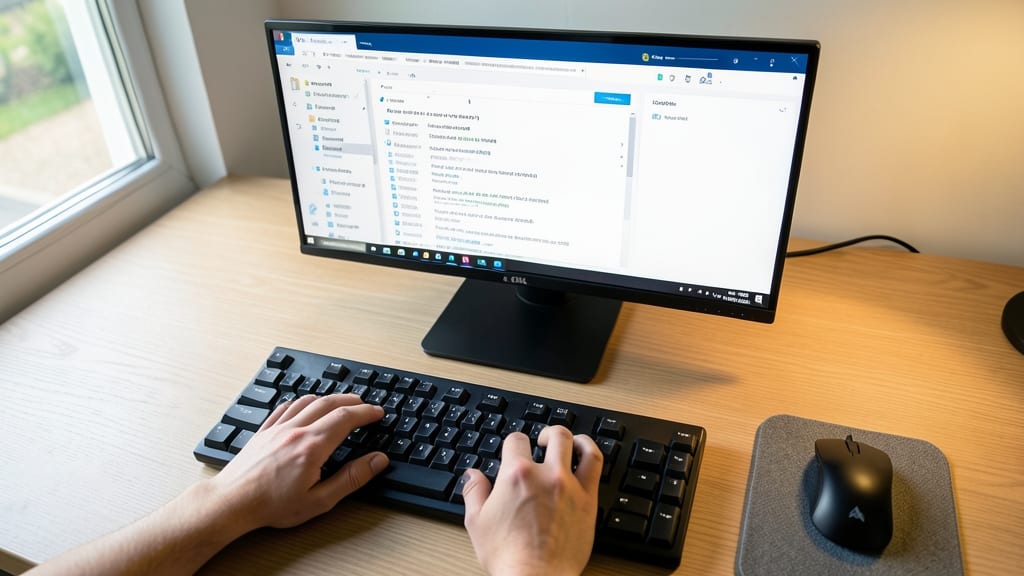
Tired of reaching for your mouse every time you need to compose a new email or delete a message? Outlook’s keyboard shortcuts can cut your email time in half—once you commit them to muscle memory. These 20+ shortcuts let you navigate, compose, and manage emails at lightning speed, reducing repetitive hand movements and keeping your focus locked on the task at hand.
Start with the basics: Ctrl+Shift+A opens a new email, Ctrl+K instantly searches your inbox, and Ctrl+G jumps to a specific folder. For power users, Ctrl+Shift+M marks an email as unread, Ctrl+Shift+D deletes it without confirmation, and Ctrl+Shift+R replies to the sender. Outlook also supports custom shortcuts—assign your own keys to frequently used commands via File > Options > Customize Ribbon > Keyboard Shortcuts. ⚡
This trick is a game-changer for developers, executives, and anyone juggling high email volumes. Spend 10 minutes memorizing these, and you’ll wonder how you ever worked without them. 💻
Email Rules to Auto-Organize Inbox
Tired of sifting through hundreds of emails daily? Outlook’s email rules act like a personal assistant, sorting and prioritizing messages automatically based on your criteria. Unlike Quick Steps (which we covered earlier), rules run silently in the background—no manual triggers needed.
Create rules to auto-file emails from specific senders (like @client.com) into custom folders, label urgent messages with colors, or even delete promotional emails before they clutter your inbox. You can also filter by keywords (e.g., "invoice" or "meeting notes") or attachments (e.g., PDFs over 5MB). Rules work across Outlook Desktop, Web, and Mobile—just set them once and forget about them.
This is a game-changer for teams handling high-volume correspondence, customer support reps, or anyone drowning in newsletters and notifications. Spend less time organizing and more time focusing on what matters. ✨
Swipe Actions for Mobile Efficiency
Tired of tapping through menus to manage emails on your phone? The Outlook mobile app transforms your device into a productivity powerhouse with swipe gestures that handle actions in seconds.
With a simple left swipe, archive emails instantly—no need to open them. A right swipe deletes messages permanently (or moves them to trash, depending on settings), while a swipe down marks emails as unread. These gestures work seamlessly across Android and iOS, syncing with your desktop rules for a unified experience. For professionals juggling back-to-back meetings, this cuts inbox time by 30% or more.
Ideal for sales reps, executives, or anyone on the move, these gestures turn your phone into an extension of your desktop workflow—without sacrificing speed. ✨
Track Email Opens and Replies
Worried your important emails get buried without a response? Outlook’s read receipts and follow-up reminders ensure your messages get seen—and acted on—without the awkwardness of calling every recipient. This feature is a game-changer for sales teams chasing leads or project managers coordinating deadlines.
Enable read receipts in File > Options > Mail > Message Options, then check "Request a read receipt" when composing. For follow-ups, use the Follow Up flag (right-click an email > Follow Up) to set reminders—even for recipients who haven’t replied. Outlook also tracks delivery status and read timestamps, so you’ll know exactly when your email landed. Combine this with conditional formatting to highlight unread messages in red for instant visibility.
Perfect for sales reps tracking prospect engagement or project managers ensuring deadlines are met, this feature turns passive email into an active workflow. No more guessing if your message was ignored—just data-driven follow-ups. ✨
Clean Up Conversation Threads Instantly

Drowning in email threads that stretch for pages? Outlook’s Clean Up feature lets you instantly trim the fat from long conversations with a single click. No more scrolling through outdated replies or forwarded chains—just keep the essentials and send the rest to the Recycle Bin in seconds.
To use it, open the thread, click the three-dot menu in the toolbar, and select Clean Up. Outlook will remove all replies except the first one from each sender, leaving you with a streamlined conversation. You can even customize the cleanup to exclude specific replies if needed. For power users, this feature works in both desktop and web versions of Outlook.
Perfect for project managers, sales teams, or anyone buried under long email chains, this trick keeps your inbox organized without manual effort. ⚡
Custom Signatures for Professional Branding
Tired of sending generic signatures that don’t reflect your professional identity? Outlook’s custom signature builder lets you create multiple branded templates—each tailored to different clients, projects, or roles—all with just a few clicks.
Add your company logo, social media handles, and even context-specific disclaimers (like legal notices for contracts or casual links for personal emails). The drag-and-drop editor supports HTML formatting, so you can embed clickable links, adjust fonts, and preview how your signature looks on desktop, mobile, and dark mode—ensuring consistency across devices. For freelancers or agencies juggling multiple brands, you can even assign shortcuts to switch between signatures instantly.
This is a game-changer for consultants, agencies, and small businesses who need to maintain a polished image while keeping client communications organized. ✨
Search Emails Using Natural Language
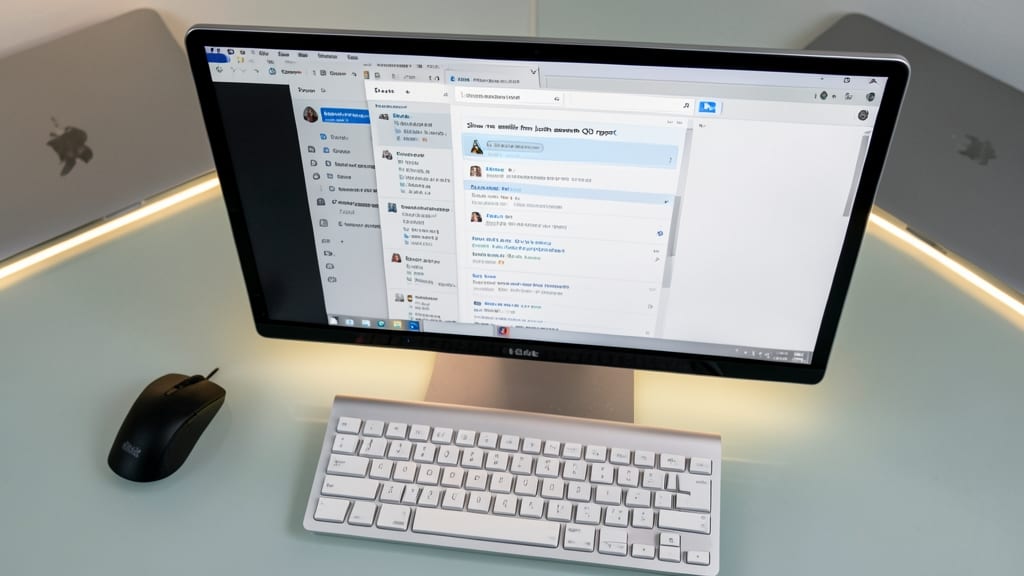
Tired of sifting through endless emails to find that one conversation? Outlook’s AI-powered natural language search lets you type full sentences like "Show me emails from John about the Q3 report" and instantly locate what you need—no complex keyword combos required.
This feature works across Outlook for Windows, Mac, and the web, using Microsoft’s Copilot integration to parse context. You can refine searches with phrases like "attachments from last month" or "meetings scheduled for next week", making it perfect for professionals juggling multiple projects. The zero-configuration setup means it’s ready to use out of the box.
Busy executives, project managers, and sales teams will love this—it cuts search time from minutes to seconds. Try it next time you’re drowning in your inbox! ⚡
Schedule Emails to Send Later
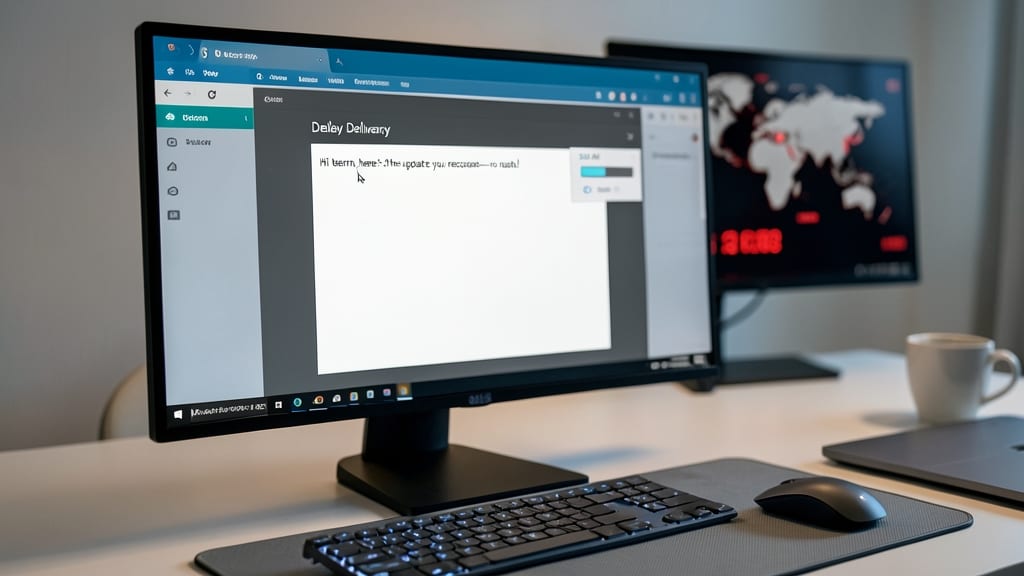
Need to send an email at 3 AM but don’t want to wake up your team? Outlook’s delayed send feature lets you draft messages now and schedule them for later—perfect for global teams or late-night replies. Simply compose your email, click the Options tab, then select "Delay Delivery" to pick a send date and time.
This works across Outlook for Windows, Mac, and mobile, and even syncs with Microsoft 365 calendars for seamless scheduling. Whether you’re coordinating with colleagues in different time zones or ensuring follow-ups land at the perfect moment, this feature eliminates the need for manual reminders or late-night sends. ⚡