
Software
Microsoft Edge is packed with features that can make browsing faster and more efficient—but many users miss out by not optimizing it properly. These seven pro tips will help you speed up browsing while keeping all the tools you rely on, from extensions to security features.
Enable Immersive Reader for Faster Content Consumption

Struggling to focus while reading dense articles or research papers? Microsoft Edge’s Immersive Reader turns chaotic text into a distraction-free, dyslexia-friendly experience with just one click. This built-in tool removes ads, pop-ups, and clutter, while offering customizable font sizes, line spacing, and even text-to-speech for hands-free reading.
To enable it, open any webpage, click the Immersive Reader icon in the toolbar (or press Alt+Ctrl+I), and adjust settings like font type (Dyslexia Optimized, OpenDyslexic), background color (sepia, white, or black), or line focus mode to highlight one line at a time. It syncs across devices and works offline—perfect for students, writers, or anyone drowning in text-heavy content.
Researchers and students will love how it reduces eye strain while improving comprehension, while casual readers benefit from the ad-free, simplified layout. Give it a try the next time you’re buried in a long article—your eyes (and brain) will thank you. ✨
Use Collections to Organize Research Instantly

Tired of juggling tabs, screenshots, and notes across different apps while researching? Microsoft Edge’s Collections feature transforms your browser into a one-click digital clipboard, letting you save web snippets, images, and notes directly from any page—no extra tools required.
With zero setup, you can highlight text, snap full-page screenshots, or jot down quick notes, then organize everything into labeled collections. The feature even syncs across devices, so your research stays accessible whether you’re at your desk or on the go. Perfect for journalists compiling sources, developers tracking code snippets, or students summarizing articles.
This built-in tool eliminates the need for third-party apps like Evernote or OneNote, saving you time and mental clutter. Give it a try—your workflow will thank you. ✨
Customize Startup Pages for Zero-Lag Loading

Tired of waiting for Edge to load a dozen unnecessary tabs every time you open it? Customizing your startup page is one of the easiest ways to shave seconds off your browsing routine—especially if you’re on a slower connection or juggling multiple tabs daily.
Head to Settings > On startup and choose "Open specific pages" to replace default tabs with only what you need—whether it’s your favorite bookmarks, a blank page, or a news site. This cuts down on unnecessary loading time by eliminating ads, trackers, and bloat from pages you don’t actively use. For power users, you can even pin specific URLs to ensure they load first.
This tweak is a game-changer for remote workers, students, or anyone who opens Edge frequently. Just a few clicks can turn a sluggish startup into a zero-lag experience. ⚡
Leverage Edge’s Built-In Password Manager

Tired of typing the same passwords over and over—or worse, forgetting them entirely? Microsoft Edge’s built-in password manager saves your logins securely in an encrypted vault, auto-filling them instantly while blocking phishing attempts. It’s like having a digital bouncer for your accounts, ensuring only legitimate sites access your credentials.
With zero-config sync across devices (Windows, macOS, iOS, and Android), your passwords stay up to date automatically. The manager even generates strong, unique passwords for new accounts and flags weak ones. Plus, it integrates seamlessly with Edge’s smart fill feature, reducing manual typing by up to 80% for frequent users.
This is a game-changer for freelancers, remote workers, or anyone managing multiple accounts—like social media, banking, or work logins. No third-party apps needed, just built-in security with a tap. ✨
Disable Unused Extensions to Boost Performance
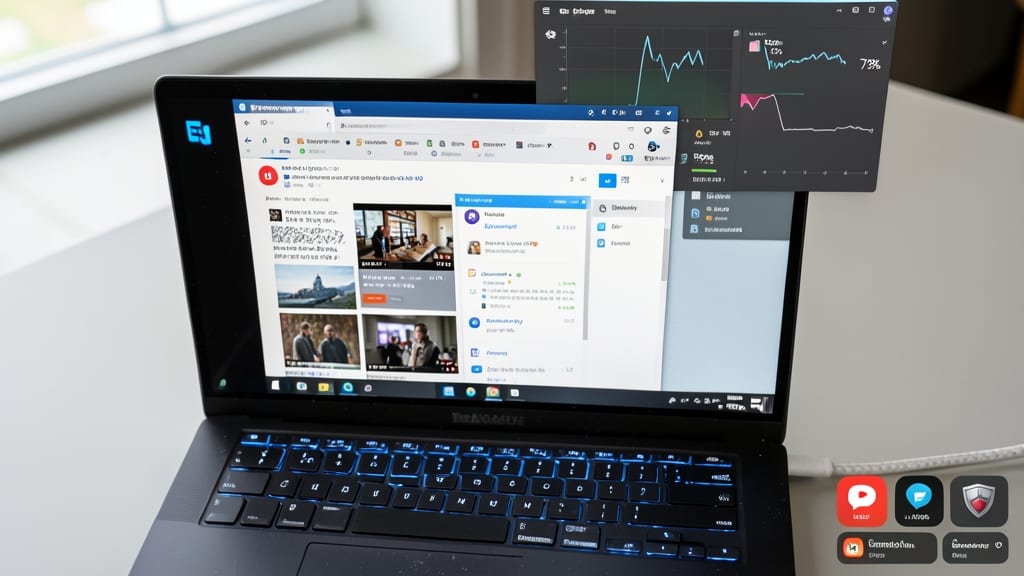
Ever notice Edge feeling sluggish when you’re juggling multiple tabs or resource-heavy tasks? The culprit might be unused extensions silently draining memory and CPU cycles. Each extension runs background processes, and even "lightweight" ones add up—especially when you’ve accumulated tools you no longer use.
Start by opening Edge’s Extensions Manager (edge://extensions) and sorting by "Memory Usage" to spot the biggest offenders. Disable anything you haven’t used in 3+ months—think abandoned note-takers, old ad blockers, or forgotten productivity tools. For power users, consider uninstalling extensions entirely if they’re no longer critical, as disabled ones still consume minimal resources. This tweak can reduce RAM usage by 20-30% in heavy workflows.
This tip is a game-changer for developers debugging code, video editors handling large files, or anyone with 10+ tabs open. A leaner extension list means faster page loads and smoother multitasking—without sacrificing functionality. 💻
Enable Hardware Acceleration for Smoother Videos
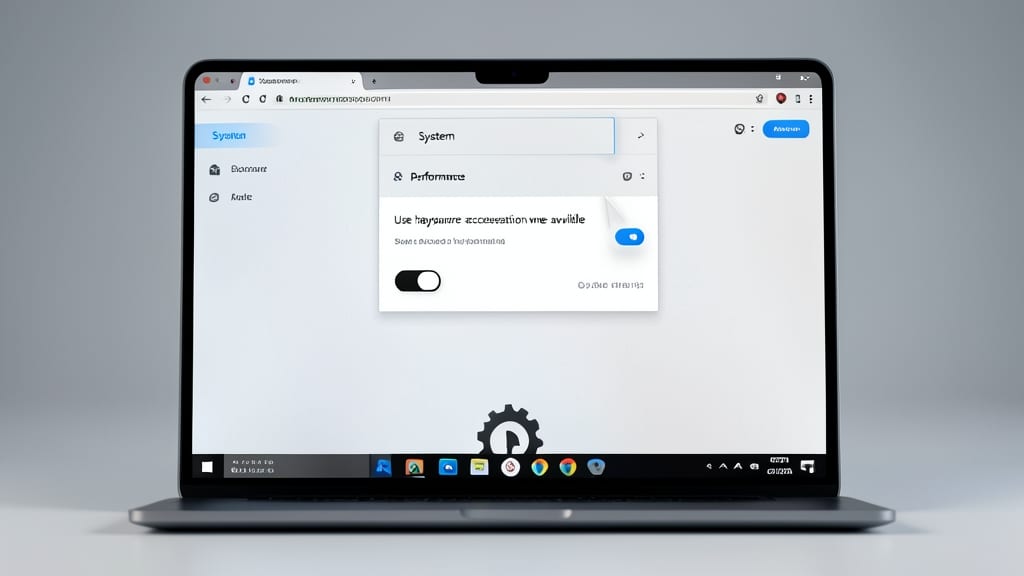
Struggling with choppy video playback or buffering on HD content? Microsoft Edge’s hardware acceleration feature can transform your experience by offloading video processing to your GPU instead of your CPU.
To enable it, head to Settings > System > Performance and toggle "Use hardware acceleration when available." This reduces lag and CPU usage by up to 30% during video playback, making it ideal for streamers, video editors, or anyone watching 4K content on mid-range PCs. Just ensure your GPU drivers are up to date for best results.
This tweak is a game-changer for users with less powerful hardware—think laptops or older desktops—where CPU strain often causes buffering. Give it a try for buttery-smooth playback! ⚡
Use Edge’s Reading View for Clutter-Free Pages
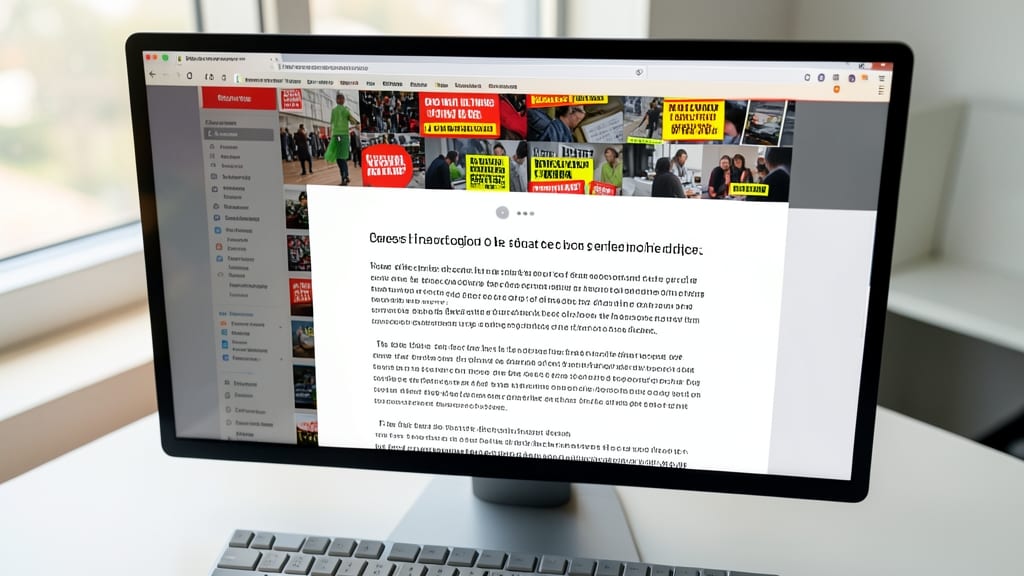
Tired of ads, pop-ups, and cluttered layouts ruining your reading flow? Microsoft Edge’s Reading View instantly strips away distractions, leaving only the article’s core content—no ads, no sidebars, just pure text.
To activate it, simply click the three-dot menu on any webpage and select "Reading View" (or press Ctrl+Shift+R). This feature automatically removes unnecessary elements, optimizes font size, and even adjusts line spacing for better readability. It’s perfect for saving data (fewer ads = faster loads) and reducing eye strain during long reading sessions.
Ideal for students, researchers, or casual readers, this tool turns chaotic news sites or blog posts into clean, distraction-free experiences. Try it next time you’re deep in an article—your eyes will thank you! ✨