
Software
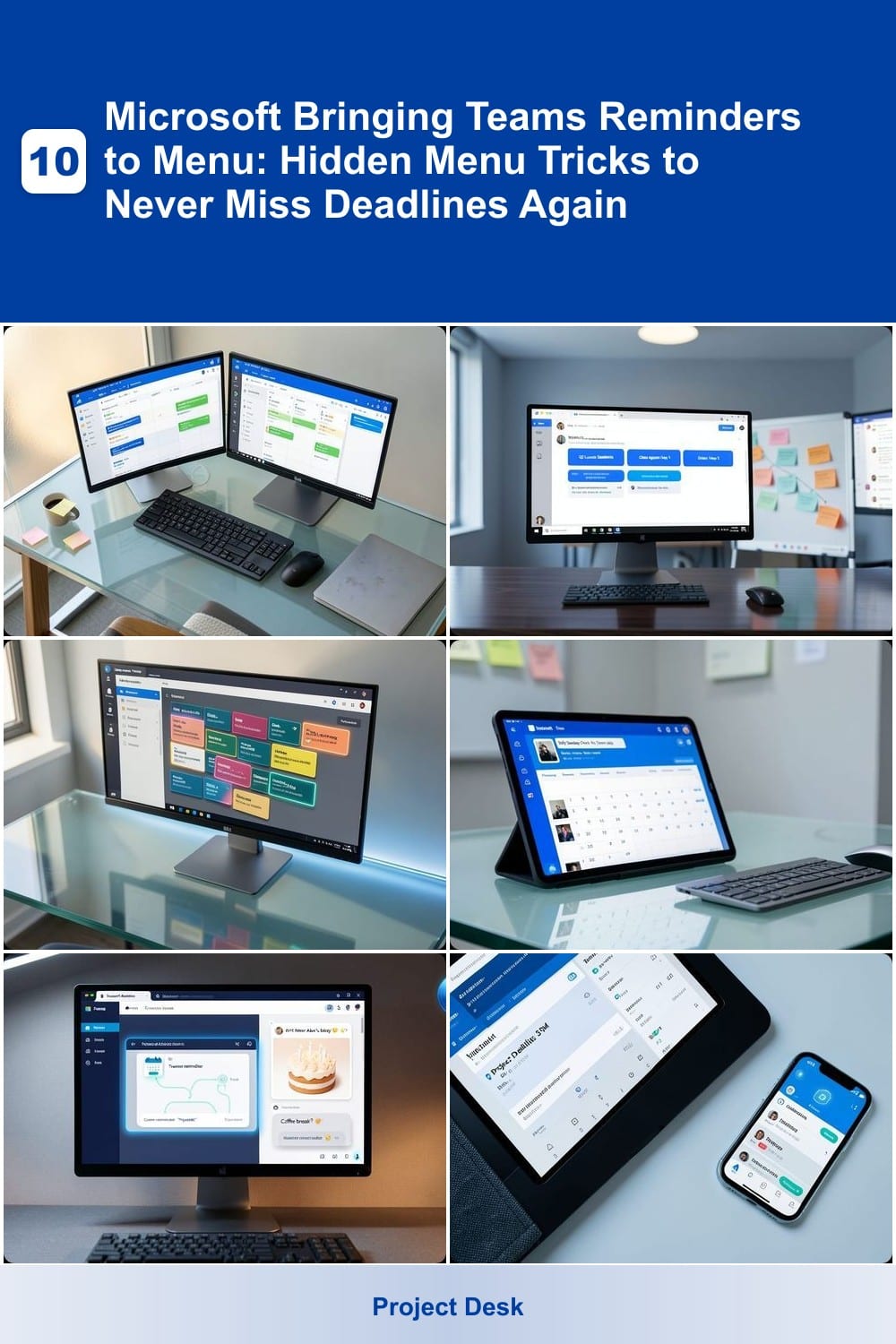
Microsoft is quietly transforming Microsoft Teams into a powerhouse for productivity with built-in reminders. These hidden menu tricks help you stay on top of deadlines, meetings, and tasks without switching apps—discover how to unlock them today.
Enable Personal Reminders in Teams Calendar
Forget juggling sticky notes or scattered apps—Microsoft Teams now lets you embed personal reminders directly into your calendar, syncing seamlessly with Outlook so deadlines never slip through the cracks. This hidden feature turns your Teams calendar into a productivity powerhouse, whether you're offline or on the go.
To enable it, open the Teams calendar view, click the "+" icon to add an event, and select "Reminder" instead of a meeting. Set a one-time or recurring deadline, add details like due dates or priority levels, and watch it sync instantly with Outlook. The reminder will appear as a dedicated calendar entry with push notifications—no extra tabs or apps needed. Even better, it works offline, so you’ll get alerts the moment you reconnect.
Perfect for freelancers, managers, or anyone drowning in deadlines, this trick keeps your schedule clean while ensuring critical tasks stay top of mind—no more buried emails or forgotten notes. ⚡
Set Channel-Specific Announcement Reminders
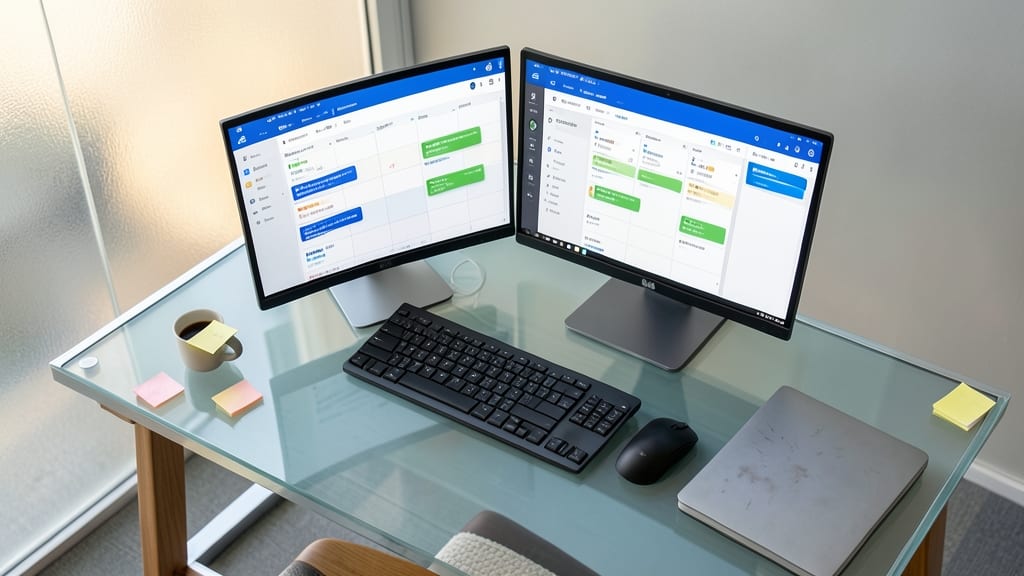
Struggling to keep your team aligned on deadlines without drowning in personal calendar clutter? Channel-specific reminders in Microsoft Teams let you pin critical updates—like project milestones or action items—directly to shared channels, ensuring everyone sees them without filling up individual schedules.
To set one, navigate to a channel, click the three-dot menu, select "Reminders", and choose "Create reminder". Assign a due date, priority level (Low/Medium/High), and even tag specific team members. The reminder will appear as a pinned announcement at the top of the channel, visible to all members—no need to forward emails or post repetitive messages.
This feature is ideal for project managers, marketing teams, or any group coordinating shared workflows. Keep deadlines visible where they matter most: in the heart of team collaboration. 💻
Use Task Module for Visual Deadline Tracking
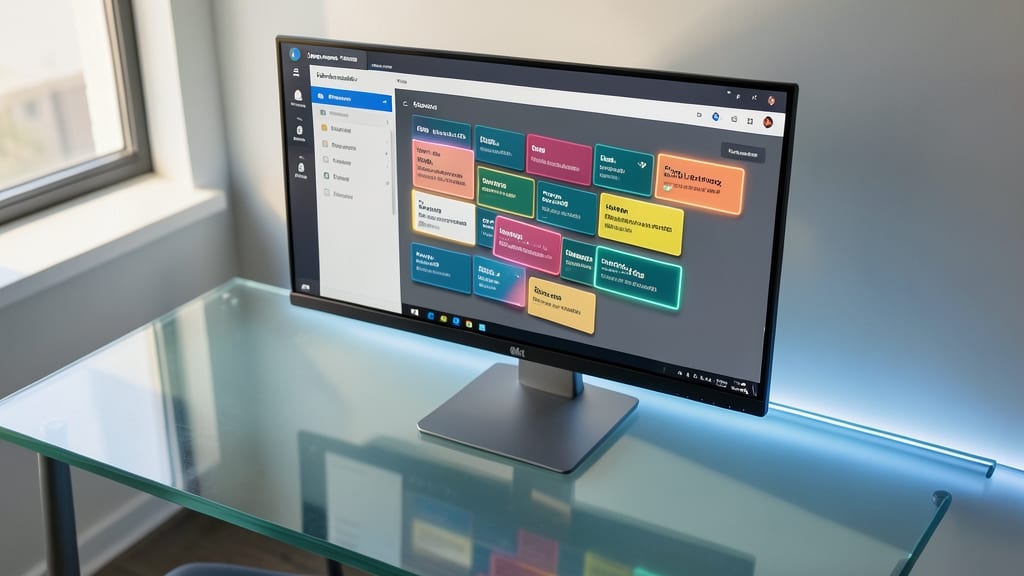
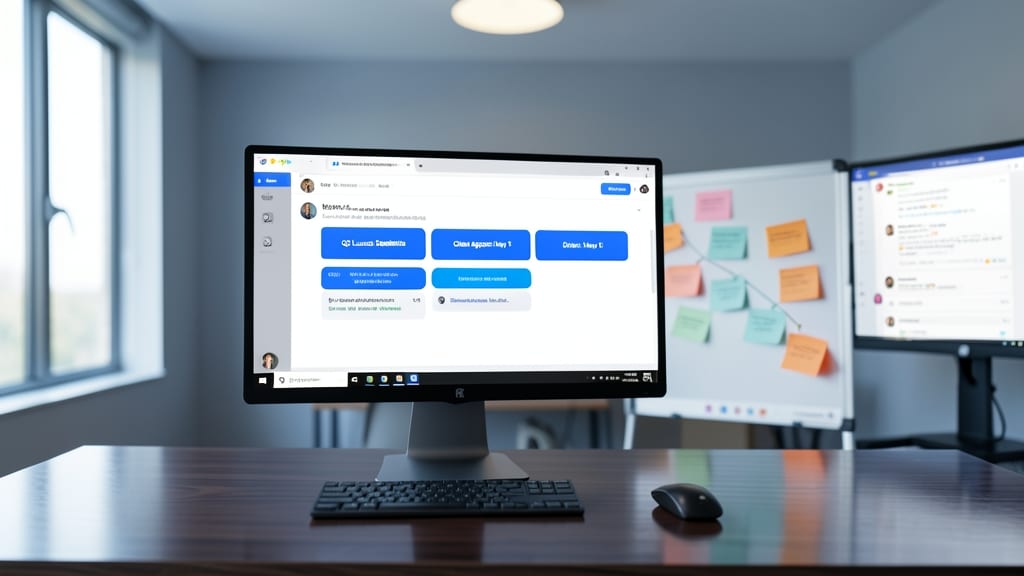
Tired of drowning in a sea of text-based reminders? The Tasks module in Microsoft Teams turns your deadlines into a visual powerhouse—literally. With drag-and-drop functionality, you can rearrange tasks by priority or timeline with a single click, making complex projects feel effortless.
Color-code tasks by urgency (red for critical, green for low-priority) and set push notifications to alert you when deadlines loom. The module even syncs with To Do by Microsoft, so your personal and work tasks stay in one place. No more buried emails or forgotten notes—just a clean, interactive workspace.
Perfect for project managers, freelancers, or anyone juggling multiple deadlines. Try it today and watch your productivity soar! ✨
Schedule Recurring Team Check-Ins
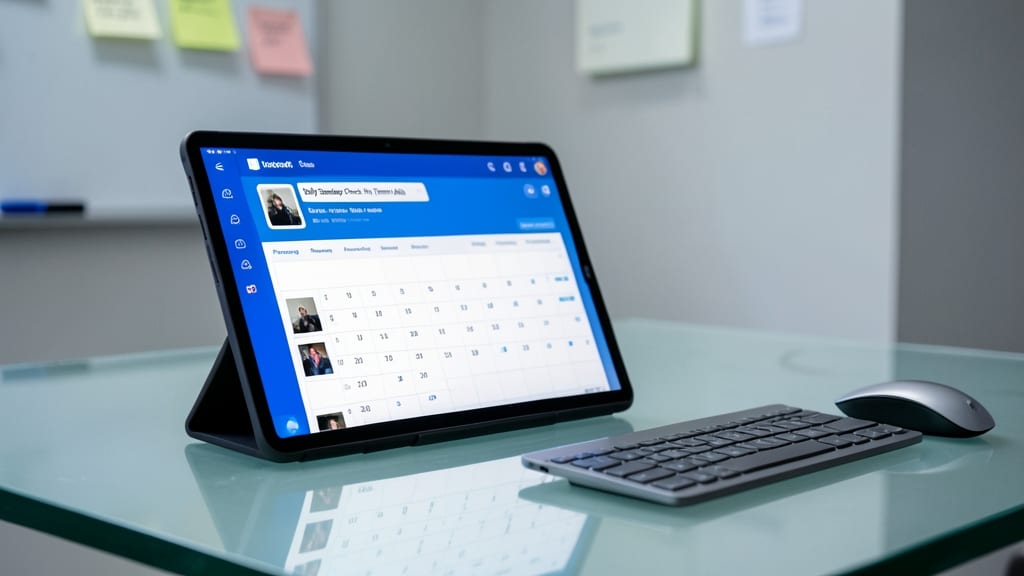
Tired of manually chasing team members for standup updates or progress checks? Microsoft Teams’ built-in scheduling tools let you automate recurring check-ins with just a few clicks—no extra apps needed.
Create a recurring meeting (daily, weekly, or monthly) and assign it to a channel or team calendar. Teams will handle the rest: sending automated notifications to all participants, syncing with Outlook, and even logging attendance. You can also customize reminders to appear 24 hours before the check-in to give everyone time to prepare.
Perfect for remote teams or project managers juggling multiple deadlines, this feature ensures alignment without the back-and-forth. Set it up once, and let Teams keep your team on track. ✨
Create Custom Reminder Bots for Teams
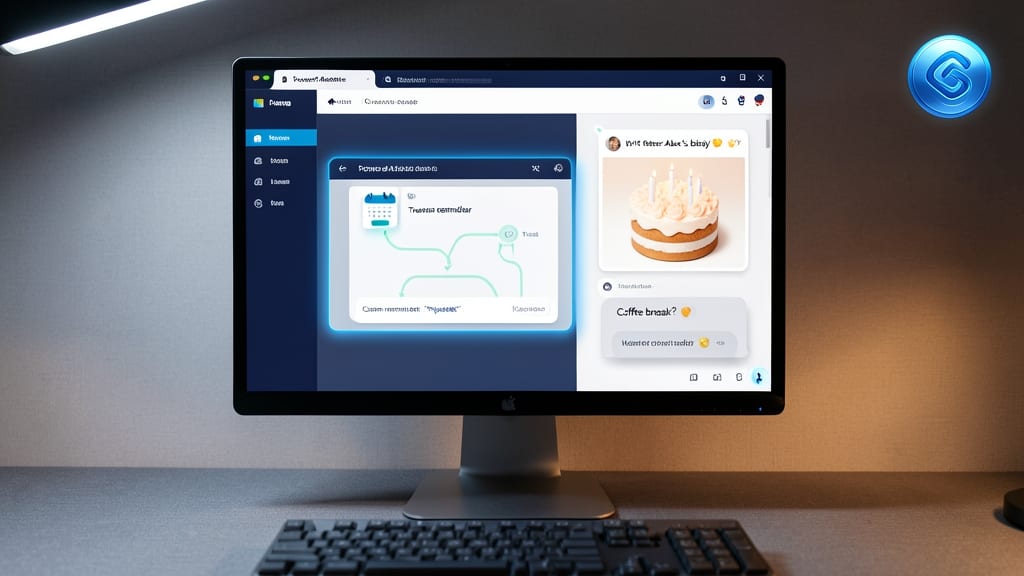
Tired of manually tracking birthdays or project deadlines in Teams? Custom reminder bots let you automate alerts without writing a single line of code. Microsoft’s Power Automate integration allows you to create bots that trigger reminders based on dates, mentions, or even keywords—like "coffee break" at 3 PM.
Start with pre-built templates (e.g., "Team Birthday Reminder" or "Project Milestone Tracker") or design your own using Power Automate’s no-code flow builder. Bots can post alerts in channels, tag specific team members, or even send private messages—all while syncing with your existing Teams workflows. The best part? They run in the background, so you never miss a beat.
Perfect for HR teams managing onboarding, project managers tracking deadlines, or casual users who just want to remember their coworker’s birthday. No IT skills needed—just drag, drop, and automate. ✨
Sync Reminders with Outlook for Cross-Platform Alerts
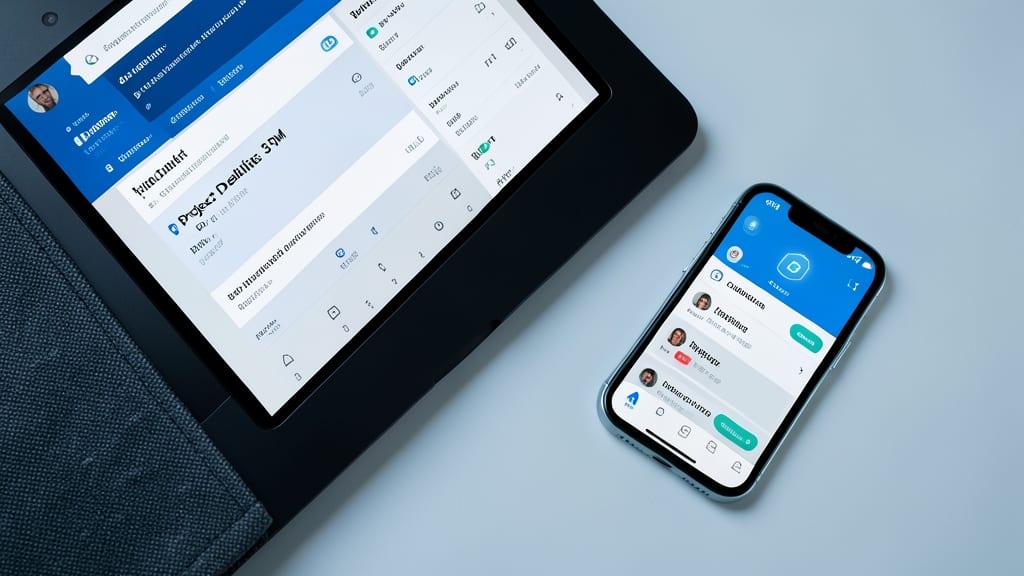
Tired of juggling Teams reminders and Outlook alerts separately? Microsoft’s seamless cross-platform sync bridges the gap, ensuring you never miss a deadline—whether you’re on desktop, mobile, or even offline.
With just a few clicks, your Teams reminders appear as Outlook calendar events, sending email alerts, mobile push notifications, and desktop pop-ups. The integration works in real-time, so updates in one app reflect instantly in the other. No more double-checking or manual transfers—your workflow stays unified across devices.
Perfect for professionals who rely on Outlook’s robust scheduling or prefer mobile notifications, this sync eliminates the friction of managing reminders across tools. 💻
Use Keyboard Shortcuts for Quick Reminder Creation
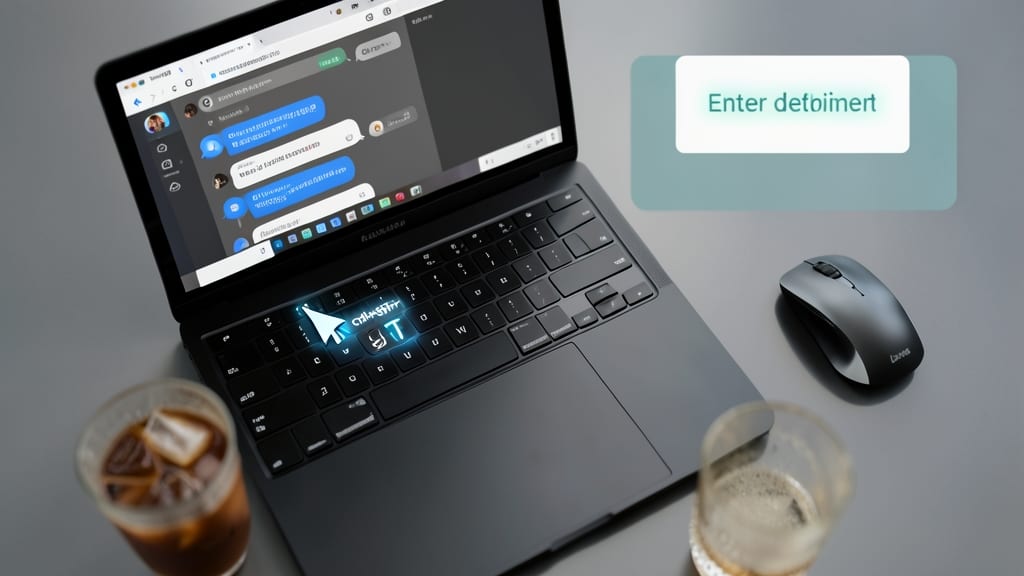
Tired of losing focus during calls or chats to manually add reminders? Microsoft Teams’ keyboard shortcuts turn quick deadline capture into a one-tap process—no menu diving required. The Ctrl+Shift+T shortcut instantly opens a reminder creation window, letting you set deadlines, assign tasks, or add notes in seconds while staying in context.
This feature shines during live meetings or fast-paced chats, where every second counts. You can even pin reminders directly to conversations or channels without interrupting workflows. The shortcut works across Windows, Mac, and web versions, ensuring consistency whether you’re at your desk or on the go. For power users, combining it with Teams’ existing reminder integrations (like Outlook sync) creates a seamless productivity loop.
Perfect for project managers, sales teams, or anyone juggling multiple deadlines, this trick cuts reminder setup time by 70%—ideal for those who thrive on speed without sacrificing organization. ⚡