
Tip & Trick
Microsoft Word is a powerhouse, but most users only scratch the surface. These seven hidden Microsoft 365 Word tips and tricks will transform how you work—saving time, improving formatting, and unlocking automation you didn’t know existed.
Quick Parts Gallery for Reusable Content
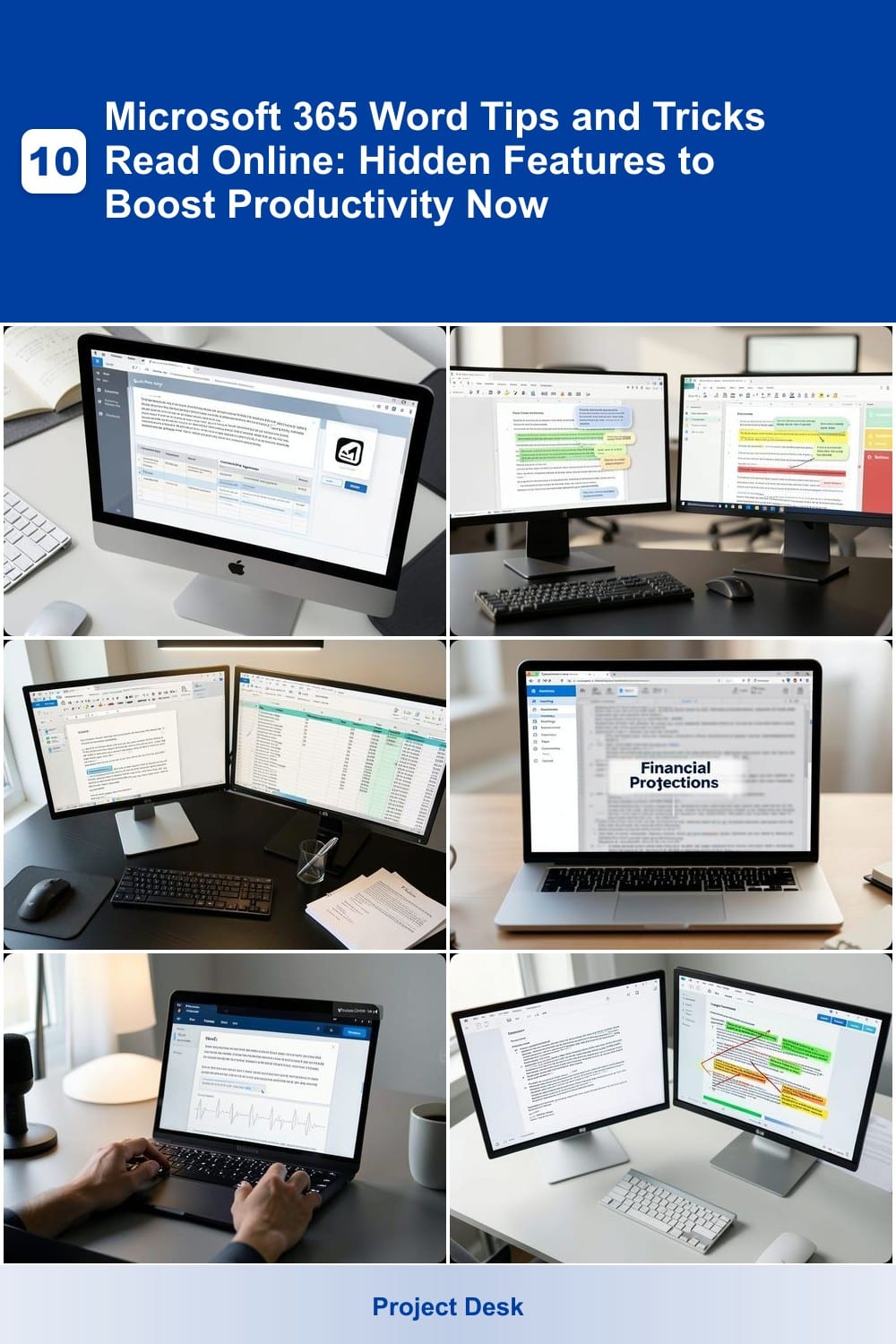
Tired of rewriting the same legal disclaimers, boilerplate text, or standard tables every time you start a new document? The Quick Parts Gallery in Microsoft Word lets you save and reuse text, tables, and graphics with just a few clicks—no copy-pasting required.
To get started, highlight the content you want to reuse (like a standard footer or contract clause), then go to Insert > Quick Parts > Save Selection to Quick Parts Gallery. Later, simply press Ctrl + F3 to insert it anywhere. You can even organize entries into custom categories for instant access. This feature works seamlessly with tables, images, and formatted text, ensuring consistency across documents.
Perfect for legal professionals, report writers, or anyone drafting templates, this trick cuts repetitive work by 50% or more. No more formatting mismatches or forgotten details—just reliable, reusable content at your fingertips. 💡
Track Changes with Comments and Highlights
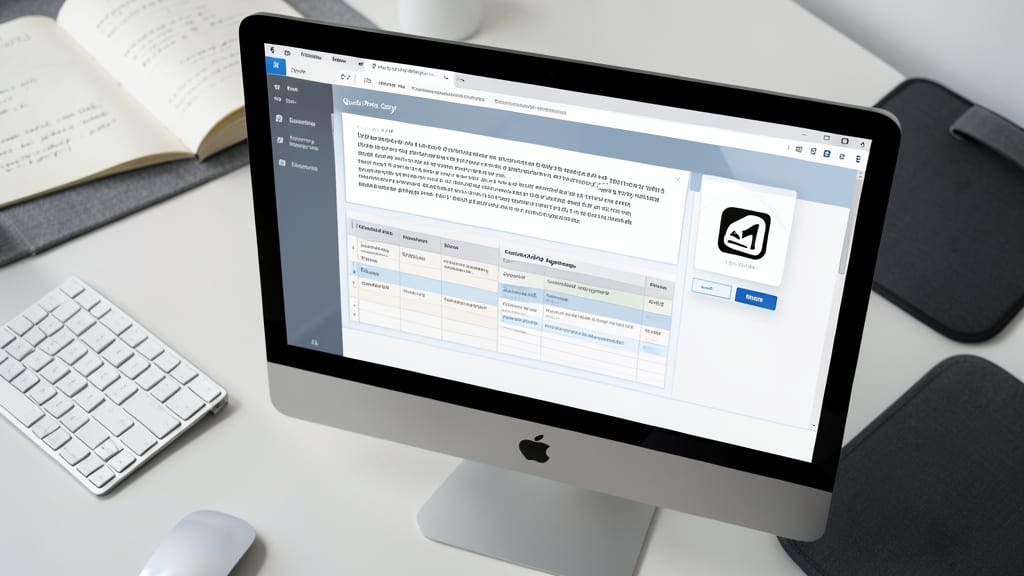
Collaborative editing just got a visual upgrade with Track Changes with Comments and Highlights—a feature that turns messy feedback sessions into a structured, color-coded workflow. Instead of drowning in a sea of red-striked text, you can now assign green highlights for suggestions, yellow for notes, and red for deletions, making feedback instantly scannable for both editors and reviewers.
To use it, enable Track Changes (Review tab), then right-click any comment or highlighted text to change its color from the dropdown menu. You can also reply to comments directly in the document, creating threaded discussions without switching platforms. This works seamlessly with Word Online, so remote teams stay aligned in real time. The best part? You can filter changes by author, so you’ll never miss a comment from your client or teammate again.
This trick is a game-changer for legal teams, marketing agencies, or anyone managing client revisions. No more lost feedback or formatting chaos—just clear, actionable edits that keep projects on track. ✨
Mail Merge with Excel Data Dynamically
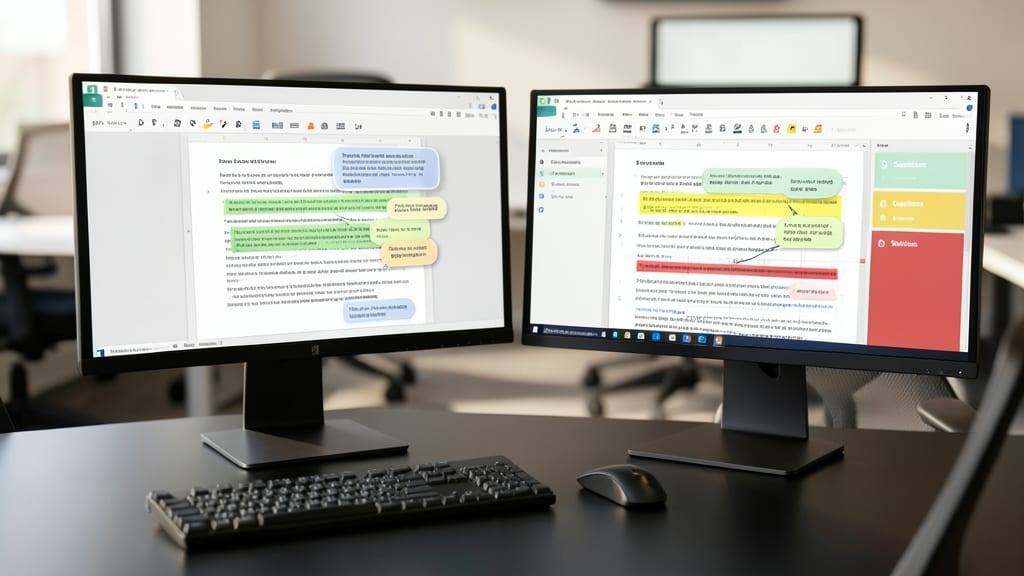
Tired of manually typing the same customer details into dozens of letters? Mail Merge in Word lets you generate personalized documents at scale—no coding required. By linking directly to an Excel spreadsheet, you can create customized letters, labels, or even envelopes in minutes, not hours.
Start by selecting Mailings > Start Mail Merge, then choose your document type. Import your Excel data (e.g., names, addresses, or product details) and use placeholders like <
This trick is a lifesaver for marketing teams sending bulk emails or small businesses managing customer communications. No more copy-pasting—just dynamic, error-free documents with one click. ✨
Navigation Pane for Large Documents

Struggling to find that one critical section buried in a 100-page report? The Navigation Pane in Microsoft Word transforms document navigation from a scavenger hunt to a lightning-fast search—no more scrolling for hours.
With a single click, you can jump to headings, pages, or even comments by category (like "All Headings" or "All Comments"). The pane also supports search within results, so you can type keywords to pinpoint exactly what you need. Best of all, it’s built into Word 365—no add-ons required.
This feature is a lifesaver for academics, technical writers, or anyone editing dense manuals. Spend less time searching and more time writing or reviewing. ✨
Dictate Text Hands-Free with Voice Commands

Tired of typing long emails or documents while juggling other tasks? Microsoft Word’s speech-to-text feature lets you dictate text hands-free with near-perfect accuracy—no keyboard required.
Simply press Home → Dictate (or use the Windows Dictation shortcut: Win + H) to start speaking naturally. The tool handles punctuation, formatting, and even complex commands like "Insert table" or "Bold this sentence." It supports over 100 languages and works offline, making it perfect for brainstorming or when typing isn’t an option.
This trick is a game-changer for writers, accessibility users, or anyone multitasking—just speak your thoughts and watch them appear instantly. ✨
Compare Documents Side-by-Side
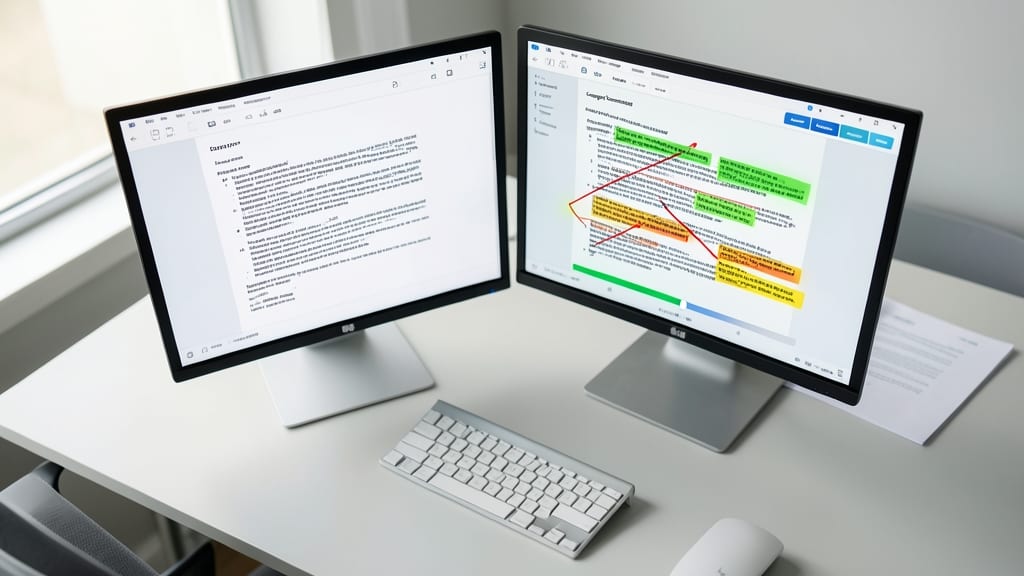
Ever spent hours manually cross-referencing two versions of a contract or report? Microsoft Word’s Compare Documents tool solves this with a single click—highlighting every addition, deletion, or formatting change in real time.
Simply go to Review > Compare > Compare and select the two files. Word instantly displays a side-by-side view with color-coded bars: green for additions, red for deletions, and blue for formatting shifts. You can even merge changes with one click or accept/reject edits individually. For legal teams or version control, this cuts review time by 70%.
Perfect for freelancers managing client drafts, developers tracking code documentation, or educators comparing student submissions. No more guessing—just instant clarity. ✨
Customize Quick Access Toolbar Shortcuts
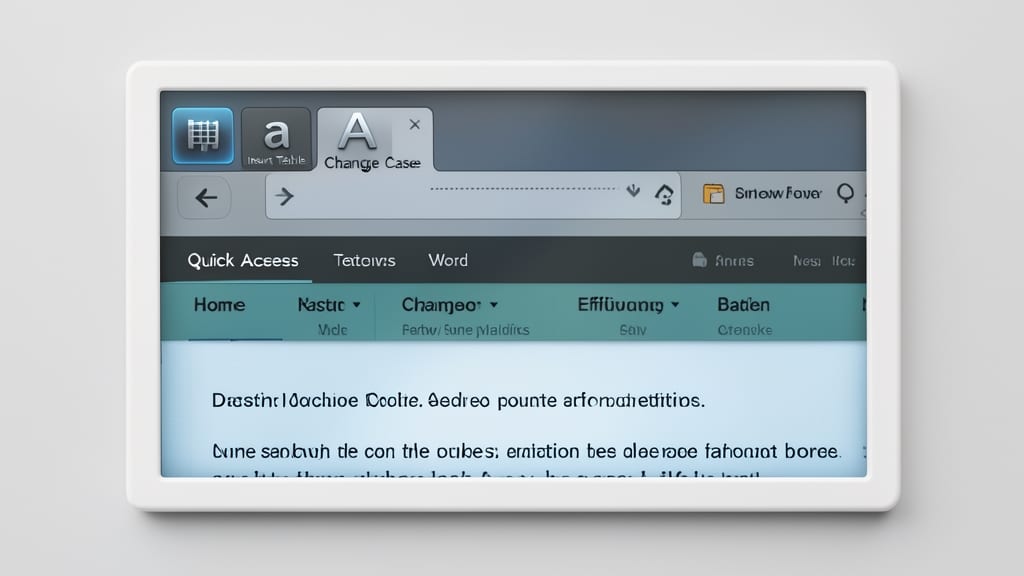
Tired of hunting through menus for the same commands every time you write? The Quick Access Toolbar lets you pin your most-used actions—like Insert Table, Change Case, or Show/Hide Formatting Marks—right at your fingertips for instant access. No more digging through ribbons or memorizing shortcuts.
To customize, right-click the toolbar and select "Customize Quick Access Toolbar". Add commands by category or search for specific ones (e.g., "Styles", "Comments", or "Zoom"). You can even place it below the ribbon for extra visibility. The best part? These shortcuts sync across your Microsoft 365 devices, so your setup follows you everywhere.
This trick is a game-changer for freelancers, legal professionals, or anyone editing documents daily. Spend less time navigating and more time writing—effortlessly. ✨