
PowerPoint
Want to elevate your PowerPoint presentations with polished, professional transitions? These seven transition effects will transform your slideshows from basic to breathtaking, ensuring your audience stays engaged and your message shines.
Fade Transition for Elegant Professionalism
When your presentation demands understated elegance, the Fade transition delivers—smoothly dissolving one slide into the next without distracting from your content. This classic effect has been a staple in PowerPoint since its early versions, proving its reliability across PowerPoint 2019, 2021, and Microsoft 365, with consistent performance on both Windows and Mac.
With zero motion or sound, the Fade transition ensures your audience stays focused on your message, not the visuals. It’s fully customizable—adjust the duration (0.1s to 5s) and choose between fade-in, fade-out, or cross-fade variants. The effect works seamlessly with dark or light themes, making it ideal for corporate reports, academic lectures, or investor pitches where professionalism is key.
Perfect for presenters who prioritize clarity and sophistication, this transition is the default choice for industries where subtlety speaks volumes. ✨
Morph Transition for Dynamic Data Visuals
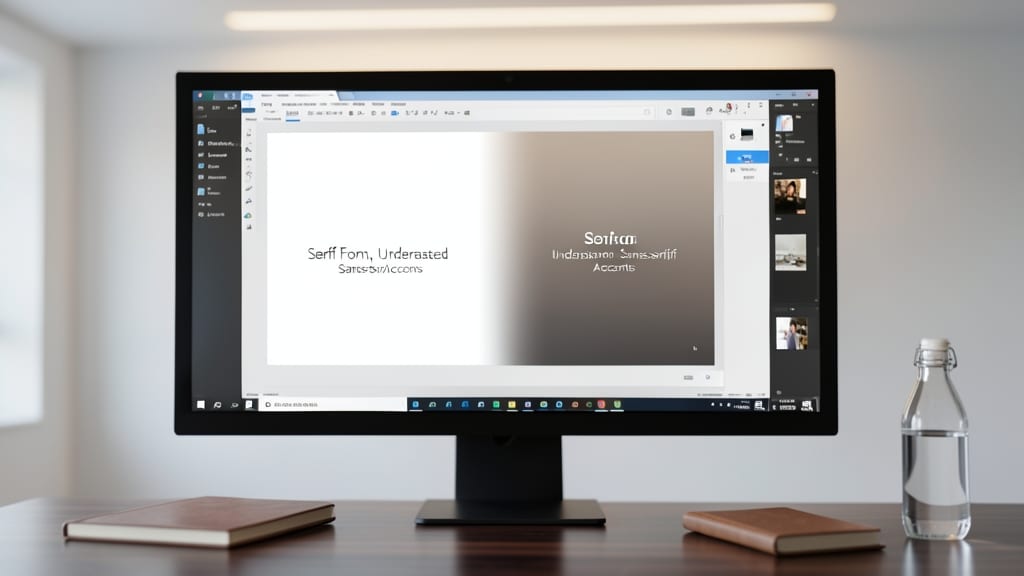
Struggling to keep data-heavy slides engaging? The Morph Transition in PowerPoint is your secret weapon—it smoothly animates shapes, charts, and graphs so your audience stays focused on the insights, not the presentation itself.
Available in PowerPoint 2016 and later (including Microsoft 365), this effect lets you morph one shape into another—like transforming a pie chart into a bar chart—while preserving data integrity. The zero-configuration setup means you can apply it to slides in seconds, and it works flawlessly with Excel data links for live updates.
Perfect for analysts, educators, or anyone presenting metrics—this transition keeps your audience’s attention on the numbers, not the flash. ✨
Push Transition for Creative Storytelling
Crafting a presentation that feels like a cinematic journey? The Push Transition is your secret weapon for storytelling slideshows, where each slide "pushes" into place like a camera dolly glide. Unlike static fades or morphs, this effect creates a tangible sense of progression, making your narrative feel dynamic and intentional.
Available in PowerPoint 2016 and later (including Office 365), the Push Transition lets you choose between horizontal, vertical, or diagonal slide movements—ideal for emphasizing directionality in your content. Pair it with custom timing (0.5s to 5s) and sound effects (like a subtle "whoosh") to amplify the storytelling impact. For extra polish, use it sparingly—2-3 slides max—to avoid overwhelming your audience.
Perfect for creative professionals, educators, or marketers sharing stories, case studies, or step-by-step processes. Whether you're unveiling a product timeline or guiding viewers through a data-driven narrative, this transition keeps them visually engaged without stealing focus from your message. ✨
Wipe Transition for Clean and Modern Slides
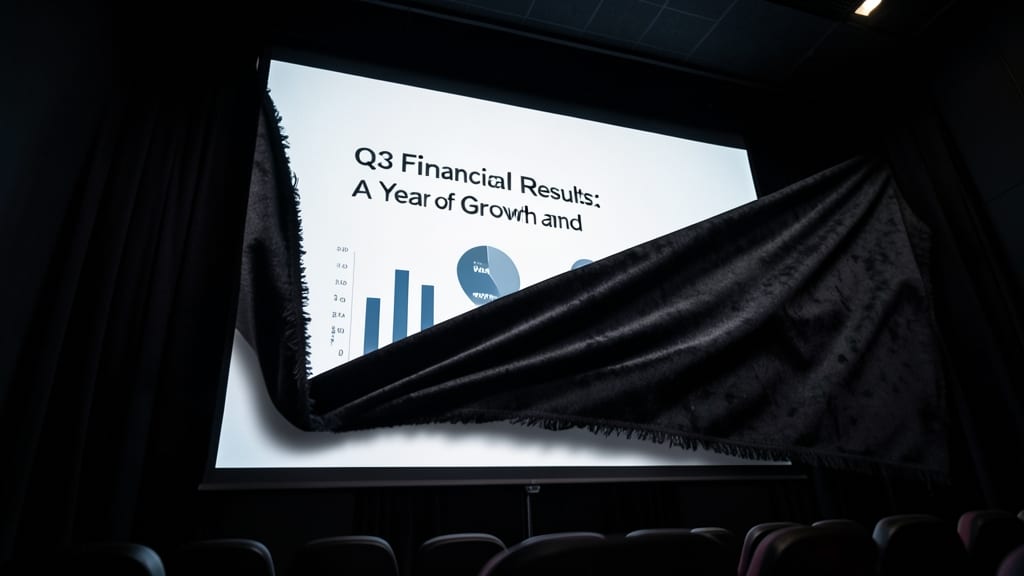
When you want your presentation to feel fresh and intentional, the Wipe Transition delivers a cinematic curtain effect that sweeps away the previous slide with precision. Unlike fade or push effects, this transition mimics a physical wipe—whether horizontal, vertical, or even diagonal—creating a visually satisfying break between ideas.
PowerPoint offers six wipe variations (left, right, up, down, diagonal, and cross), each customizable with speed adjustments and sound effects for added polish. The effect works best with minimalist layouts, as it highlights clean design by drawing attention to the transition itself rather than competing with cluttered slides.
Designers, educators, and modern professionals will love this transition for its sophisticated yet unobtrusive presence—ideal for emphasizing a new topic, section, or visual theme. ✨
Zoom Transition for High-Impact Reveals
Need to make your biggest announcements unforgettable? The Zoom transition in PowerPoint delivers a cinematic punch by smoothly zooming in or out to spotlight key slides—perfect for product launches, keynote speeches, or any moment that demands attention.
This effect lets you control the zoom direction (in or out), speed, and even starting point to create dramatic reveals. For example, zoom into a product screenshot for a launch or out from a logo to introduce a new team. Works seamlessly in PowerPoint 2016 and later, including the 365 version, with no compatibility issues.
Best for presenters who want to command the room—think startup founders, sales leaders, or educators rolling out transformative ideas. Just don’t overuse it, or your audience might get motion sickness! ✨
Slide Transition for Classic Simplicity
When your presentation demands a polished, distraction-free approach, the Slide transition delivers the perfect balance of simplicity and professionalism. Unlike flashy animations, this effect uses a clean horizontal or vertical shift—keeping your audience focused on your message without unnecessary visual noise.
Available in PowerPoint 2016 and later, this transition offers two directions (horizontal or vertical) and a customizable speed (0.1s to 10s). It’s lightweight, ensuring smooth performance even on older systems, and pairs seamlessly with formal templates like corporate reports or academic lectures.
Ideal for conservative industries (law, finance, or education), this transition subtly reinforces credibility while letting your content take center stage. 💻
3D Rotate Transition for Interactive Engagement
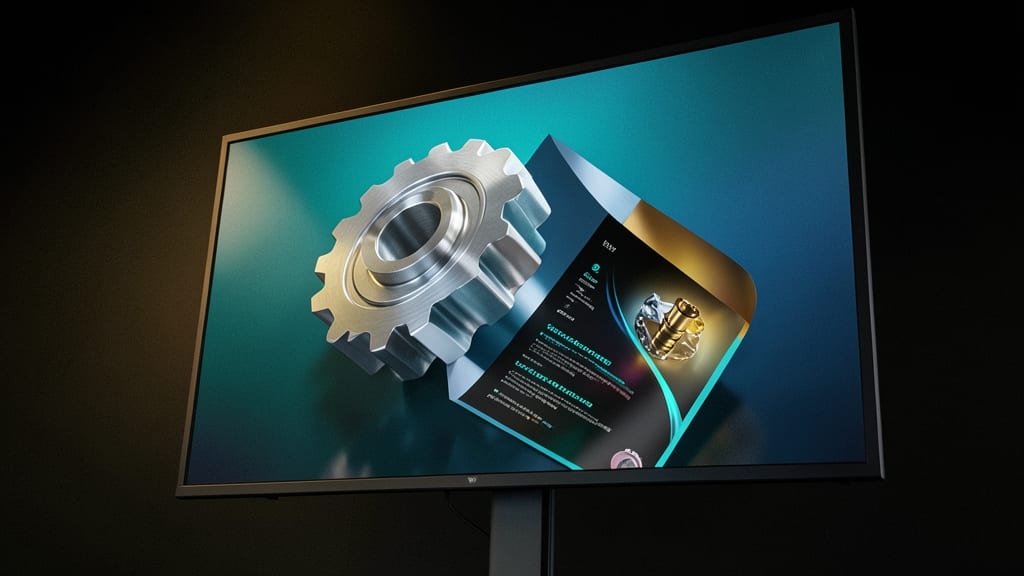
Want to turn your presentation into an immersive experience? The 3D Rotate Transition lets your slides spin into view like a digital flipbook, adding depth and energy to every slide change.
Available in PowerPoint 2013 and later, this effect works best with 3D models or layered designs—think product mockups, architectural renders, or creative concepts. You can adjust the rotation axis (X, Y, or Z) for custom effects, and pair it with sound effects for extra flair. Just avoid overusing it with text-heavy slides, as readability might suffer.
Perfect for designers pitching visual concepts, marketers launching campaigns, or trainers leading interactive workshops. It’s the ultimate way to keep your audience leaning in. ✨