
Tip & Trick
Struggling to find files in cluttered Microsoft folders? Mastering file naming conventions can save you hours weekly. These proven Microsoft best practices will help you organize work files faster and make sharing easier across Teams, SharePoint, and OneDrive.
Date-Based Naming with YYYY-MM-DD Format
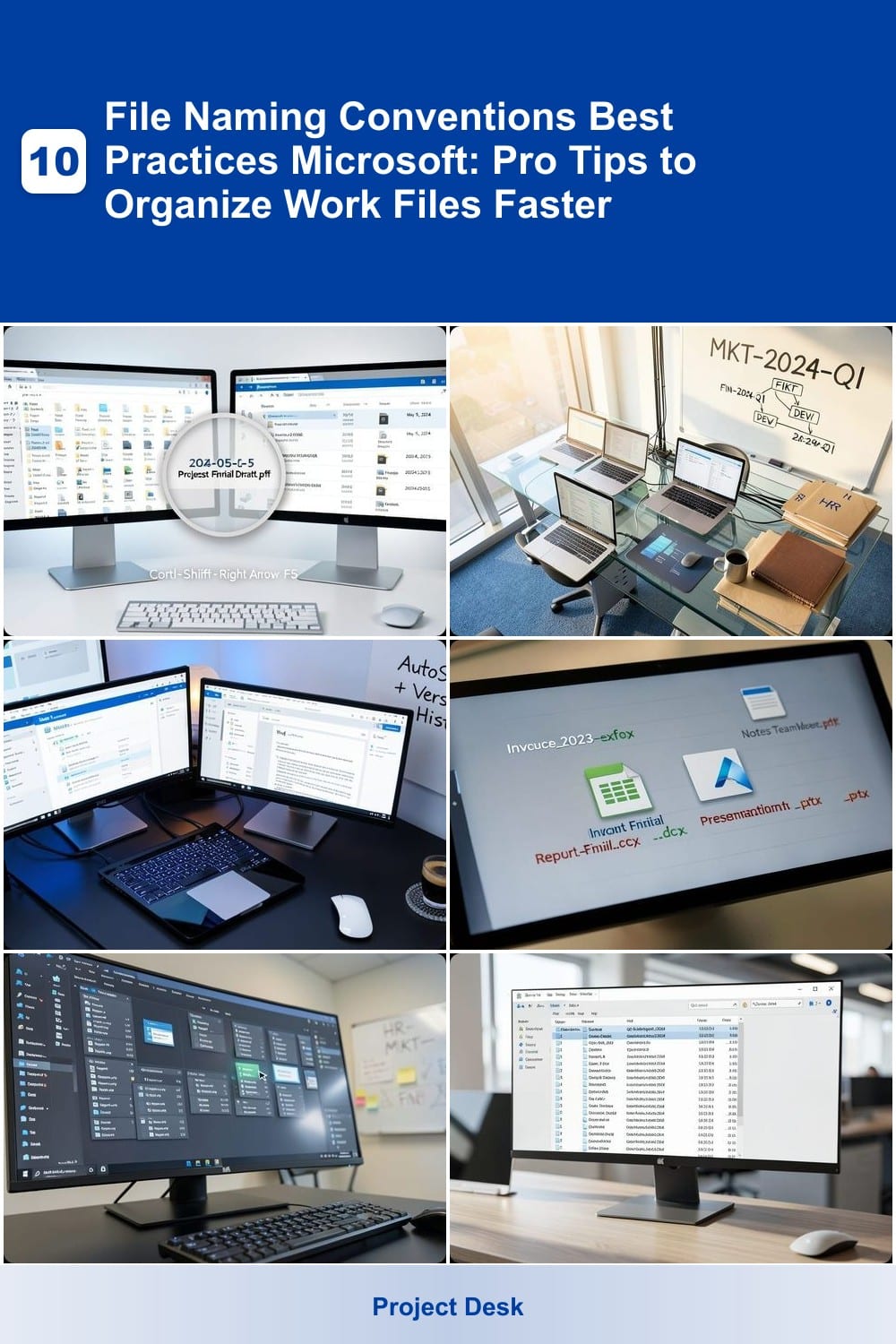
Frustrated by files that refuse to sort chronologically in Windows Explorer or SharePoint? The YYYY-MM-DD format is your secret weapon—it ensures dates appear in perfect order without manual tweaking, even across different languages.
Prefix your files with the year, month, and day (e.g., 2024-05-15Q2Report.docx), and Windows will automatically sort them from oldest to newest. This works seamlessly in SharePoint libraries, OneDrive, and Teams channels, eliminating the need for extra columns or metadata. The format also integrates flawlessly with Microsoft Power Automate for automated workflows.
Ideal for project managers, legal teams, or anyone tracking time-sensitive documents—your files will always stay organized, no matter how many you create. ⚡
Project-Code Prefixes for Team Collaboration

Struggling to keep track of files when multiple teams collaborate on the same project? Project-code prefixes like MKT-2024-Q1 transform chaos into clarity by embedding the project’s identity upfront—no more guessing whether a file belongs to Marketing or Finance.
Start with a 3-letter department code (e.g., HR-, FIN-, MKT-) followed by the year, quarter, and purpose (e.g., MKT-2024-Q1_LaunchPlan.docx). This system works seamlessly in SharePoint, Teams channels, and OneDrive, where files often get buried in shared drives. The prefix also syncs with Microsoft’s metadata filters, making it easy to search or filter by project.
Perfect for enterprise teams, agencies, or any group managing cross-departmental projects—your files will stay organized, and your team will finally know where to find them. 💻
Version Control with Suffix Numbers

Tired of losing track of your latest edits when collaborating on shared Microsoft files? Version control suffixes like 'v2' or 'Final' create a safety net against accidental overwrites—especially when paired with AutoSave and SharePoint version history.
This method works seamlessly with Microsoft Word, Excel, and PowerPoint, where suffixes like 'Draft', 'v3', or '_ClientReview' clearly mark each iteration. SharePoint automatically preserves these versions, so you can restore previous drafts with one click. For teams, it eliminates the "Which file is the most recent?" chaos while keeping filenames clean and searchable.
Perfect for freelancers, legal teams, and marketing agencies where multiple stakeholders edit the same documents. Your peace of mind (and sanity) will thank you. ✨
File Type Extensions for Instant Identification
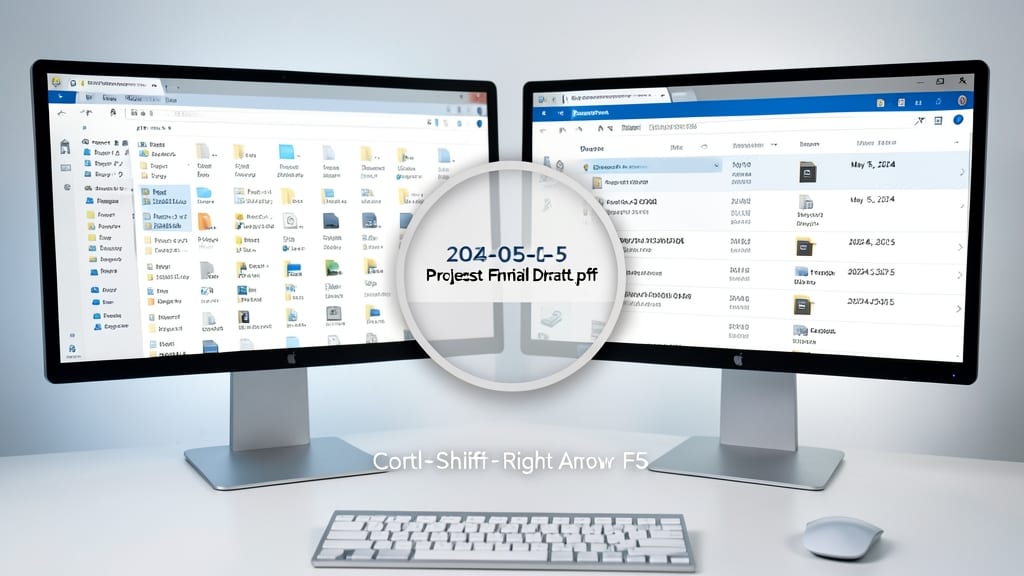
Ever wasted minutes searching for a file because you couldn’t tell if it was a Word document or a PDF just by looking at the name? Keeping file extensions visible solves this instantly—no more guessing between ReportFinal.docx and ReportFinal.pdf.
Windows search filters automatically recognize extensions like .xlsx, .pptx, and .jpg, making it effortless to narrow down results. This method also prevents accidental overwrites when saving different file types with similar names. Plus, it aligns perfectly with Microsoft’s SharePoint and OneDrive organization standards.
This approach is ideal for legal teams, marketing agencies, or anyone juggling multiple file formats daily. ⚡
Department-Specific Abbreviations System

Tired of digging through shared drives to figure out whether that "Q1Report.xlsx" came from Marketing or Finance? A department-specific abbreviations system solves this instantly by embedding the source department in every filename.
Start with clear, 3-letter department codes (e.g., HR- for Human Resources, FIN- for Finance, MKT- for Marketing) followed by your usual naming structure. For example, transform "EmployeeHandbook.docx" into HR-EmployeeHandbook2024.docx—now every file’s origin is instantly visible. This system works seamlessly in SharePoint, OneDrive, and Teams, where departmental collaboration is common.
Perfect for enterprise teams or organizations with cross-departmental projects, this method cuts down on confusion and speeds up file retrieval. Try it with your next shared drive cleanup—your future self will thank you! ✨
Underscores for Multi-Word Clarity
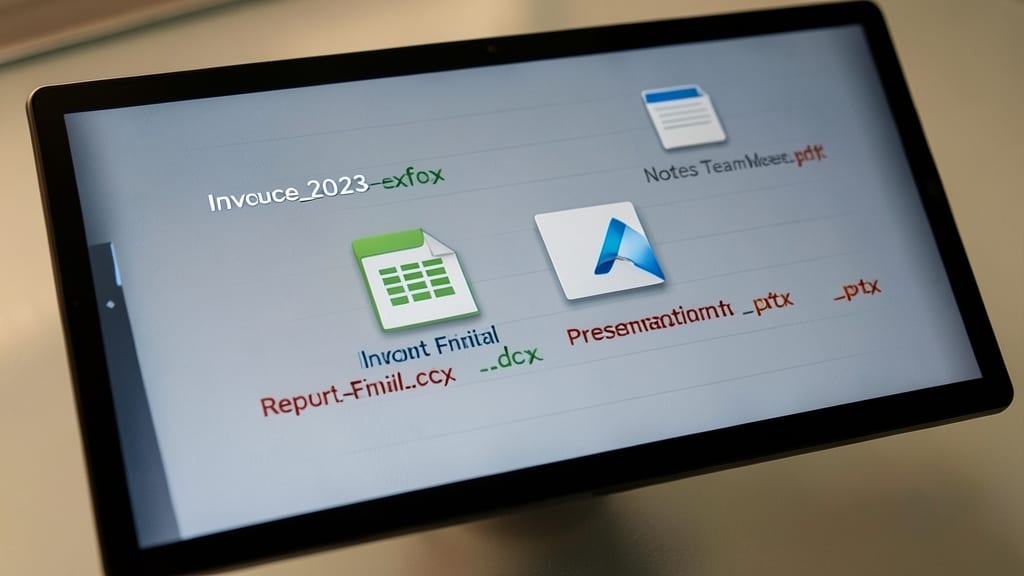
Tired of files mysteriously disappearing into alphabetical chaos in Windows Explorer? The underscore trick solves this by replacing spaces with underscores—so "Q2 Sales Report 2024" becomes Q2SalesReport_2024. This small tweak ensures perfect sorting while keeping readability intact.
Microsoft apps like Word, Excel, and SharePoint handle underscores flawlessly, and they prevent the "1.doc", "2.doc" naming disasters that plague shared drives. The underscore also works seamlessly in URLs, making file sharing via OneDrive or Teams links smoother than ever.
Perfect for teams managing large libraries or individuals who want foolproof organization. Your files will sort correctly every time—no more guessing games. ✨
Client-Centric Naming for External Sharing
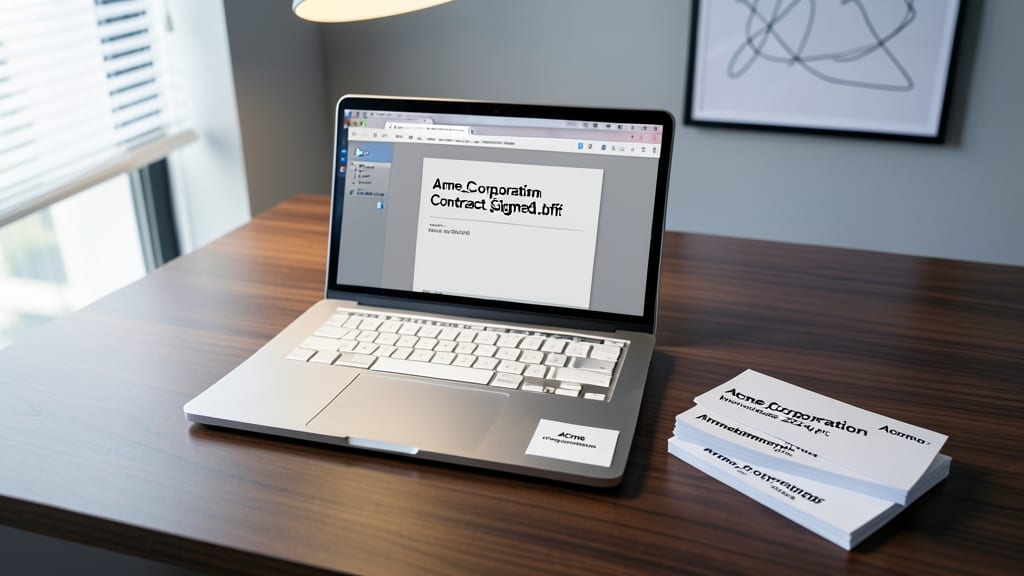
When sharing files with clients, the last thing you want is confusion over what they’re downloading. Client-Centric Naming flips the script by prioritizing the client’s name first—like AcmeCorporationContract_Signed.pdf—so they instantly recognize the file’s purpose and origin.
This approach works seamlessly with Microsoft 365’s sharing tools, including OneDrive and SharePoint, where file names appear in notifications and links. For legal or consulting pros, it eliminates the back-and-forth of "Which file is this?" by embedding the client’s identity upfront. Plus, it integrates perfectly with Teams channels and email attachments.
Perfect for professionals who need to share files externally—whether it’s contracts, proposals, or deliverables. Your clients will thank you for the clarity, and your inbox will thank you for the reduced follow-ups. ✨