
Tip & Trick
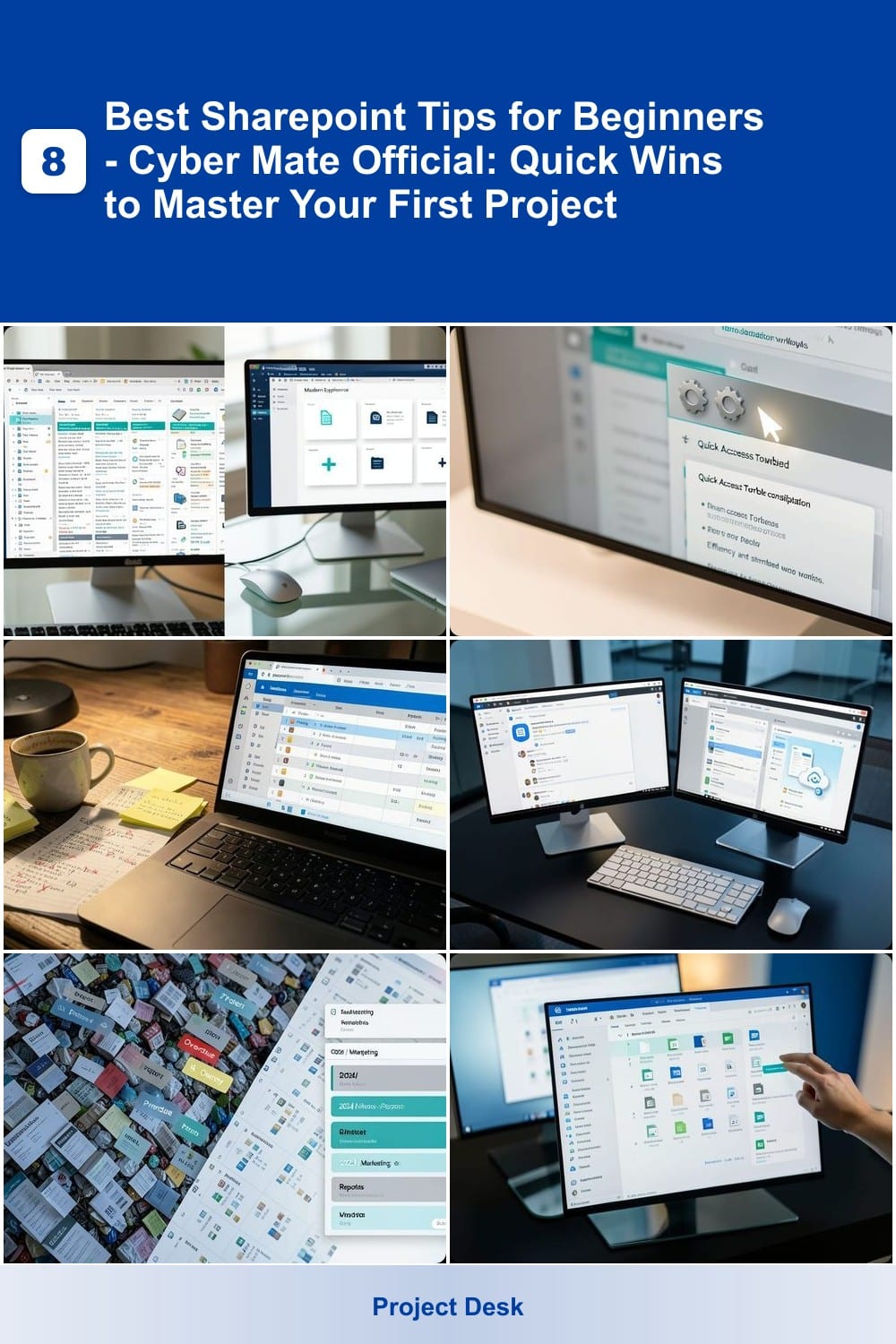
Struggling to navigate SharePoint as a beginner? These eight essential tips will help you master the basics quickly, boost productivity, and avoid common pitfalls in your first project. Perfect for new users looking to leverage SharePoint’s full potential without overwhelming technical jargon.
Start with SharePoint Modern Experience
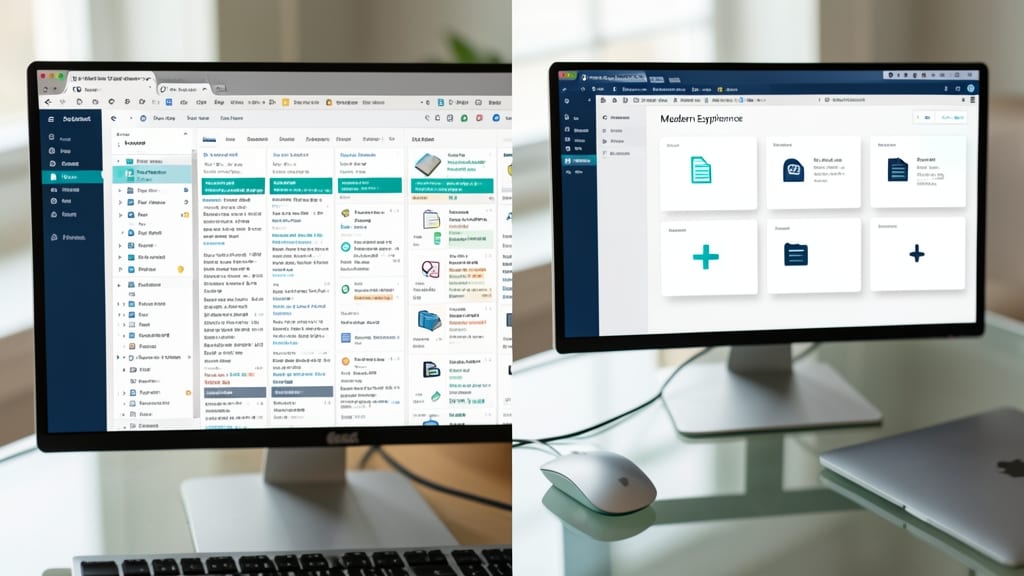
Stuck in the outdated SharePoint Classic view? The Modern Experience is your gateway to a faster, more intuitive workspace—designed specifically for beginners who want to ditch the clutter. Microsoft’s latest interface replaces confusing ribbons with a clean, card-based layout, making navigation as simple as dragging and dropping.
Key upgrades include the app launcher (one-click access to all tools), mobile-friendly design, and AI-powered search that understands context. For example, searching for “Q2 sales report” might pull up related files, tasks, and even emails—no manual digging required. The newsfeed-style home page also highlights recent activity, so you’re always in sync with your team’s progress.
This version is perfect for new users transitioning from Google Drive or teams adopting SharePoint for the first time. The familiar Microsoft 365 integration means your files, calendars, and contacts sync seamlessly—no learning curve. 💡
Master the Quick Access Toolbar
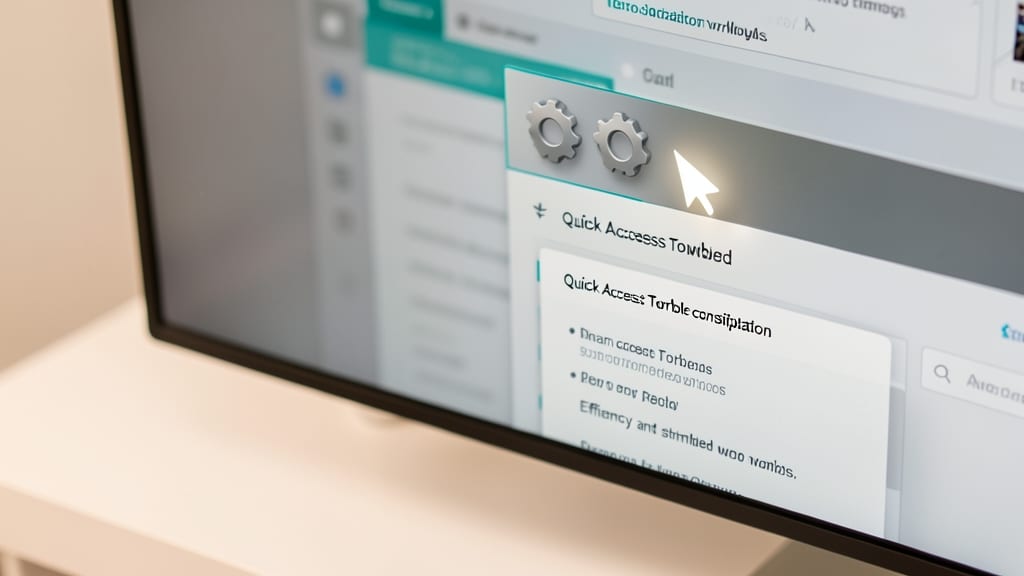
Tired of clicking through menus every time you need to create a document or share a file? The Quick Access Toolbar in SharePoint is your secret weapon for speed—let’s customize it to cut repetitive clicks in half.
Start by clicking the gear icon in the top-right corner of your SharePoint page, then select Quick Access Toolbar. Here, you can add commands like “New”, “Share”, or “Edit” with just one click. For example, if you frequently create Word documents, pin the “New Document” button to the toolbar—no more navigating through the ribbon each time. You can also add site-specific shortcuts like “Open in Explorer” or “Sync” for instant access. The toolbar syncs across devices, so your customizations follow you whether you’re at your desk or on the go.
This is a game-changer for project managers or team leads who juggle multiple tasks daily. Spend less time clicking and more time getting work done—efficiency starts here. 💪
Use Lists for Simple Data Management
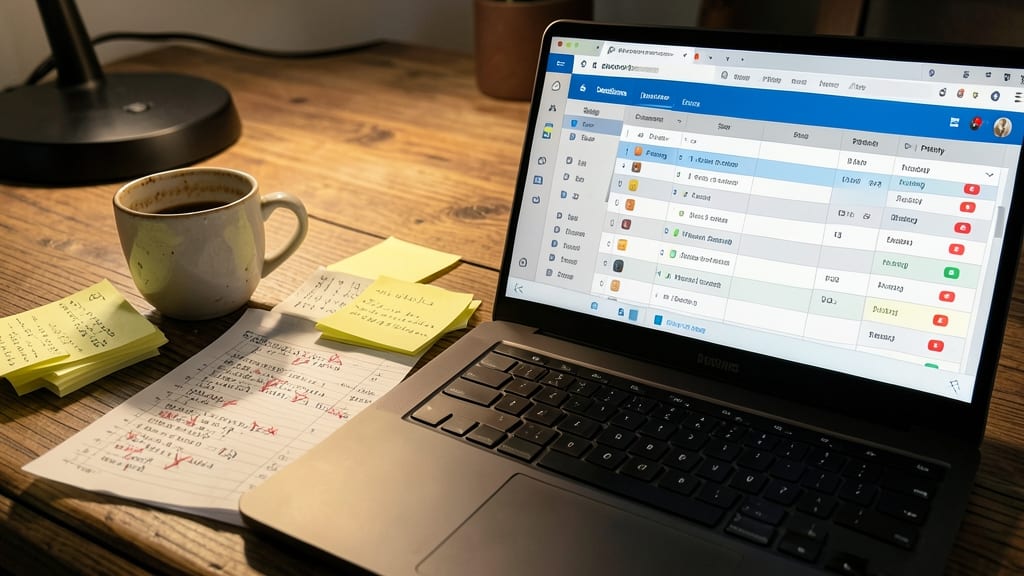
Drowning in spreadsheets or sticky notes? SharePoint Lists offer a built-in, no-code way to track tasks, contacts, or events—without the complexity of Excel formulas or manual updates.
Create a customizable table in seconds with columns for deadlines, statuses, or priorities. Use pre-built views (like calendar or Gantt) to visualize data instantly, or add lookup fields to connect lists across projects. Best of all, it syncs automatically with Microsoft 365 apps like Outlook and Teams.
Perfect for project managers, small teams, or solo users who need a simple, scalable way to organize data—no coding required. ✨
Leverage Microsoft Teams Integration
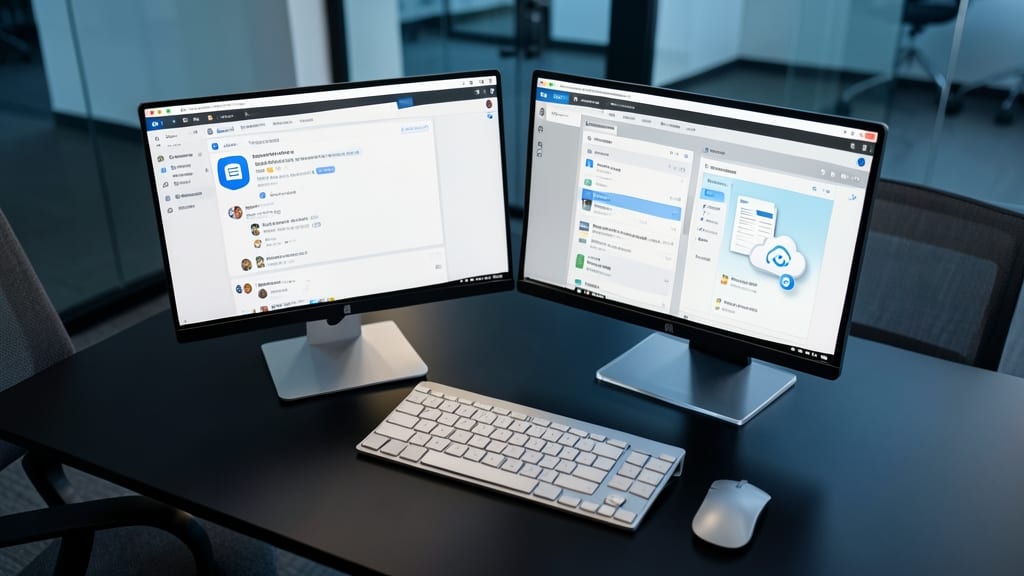
Tired of juggling emails, chats, and file shares across different tools? Microsoft Teams and SharePoint work together seamlessly to streamline collaboration—no extra logins or app-switching required.
With Teams integration, you can pin SharePoint document libraries directly to your chat channels, so files are always just a click away. Need to discuss a project file? Simply @mention teammates in the chat, and attach the file from SharePoint without leaving Teams. The Files tab in Teams channels also syncs with SharePoint libraries, keeping everything in one place.
This combo is perfect for remote teams or hybrid offices where quick discussions and file updates happen constantly. No more "Where’d that file go?" moments—just point-and-click access. 💻
Organize Files with Folders and Metadata
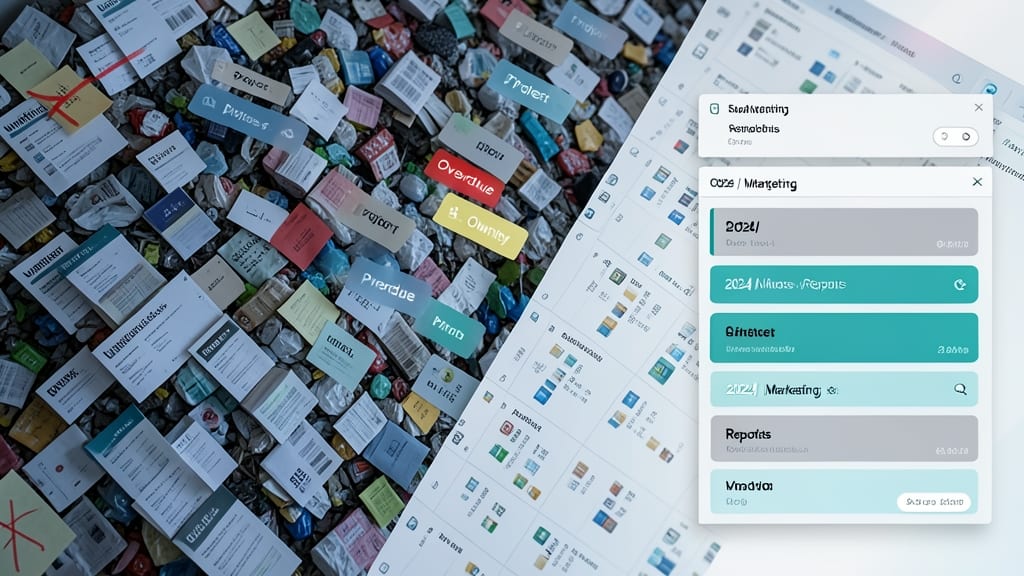
Drowning in a sea of unorganized files? SharePoint’s folder structure and metadata tags (like Project, Owner, or Priority) turn chaos into clarity—no more digging through endless document libraries.
Start by creating nested folders (e.g., 2024/Marketing/Reports) to mirror your workflow. Then, add custom metadata columns to label files by client, deadline, or status. For example, tagging a file with “High Priority” lets you filter results instantly—saving hours of manual searching. SharePoint even lets you color-code folders for visual cues at a glance.
This system is a lifesaver for project managers or team leads juggling multiple initiatives. With metadata, you’ll spend less time searching and more time collaborating. ✨
Enable Version History for Safety
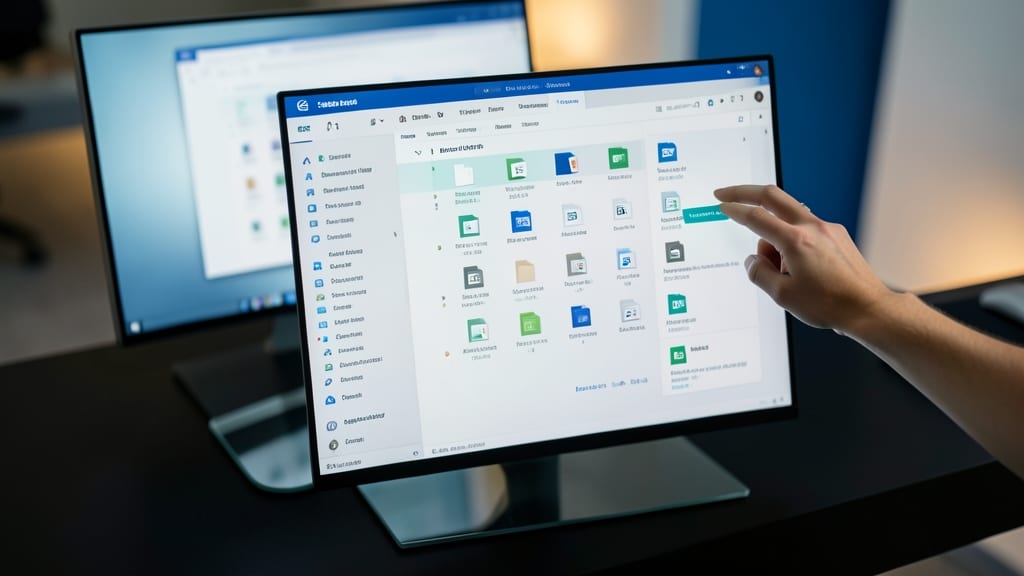
Ever hit "Save" only to realize you just overwrote hours of work? SharePoint’s version history acts like a digital safety net—automatically saving snapshots of your files so you can restore previous versions in seconds.
To enable it, simply click the three-dot menu on any document library, select Library Settings, then Versioning Settings. Here, choose "Create major versions" (for key milestones) or "Create minor versions" (for frequent edits). You’ll retain up to 500 versions by default, with options to adjust retention policies. Need to recover? Just open the file, click Version History, and pick the version you want—no tech skills required.
This is your undo button for real work, perfect for beginners collaborating on shared documents or drafting important reports. Never fear losing progress again! ⚡
Automate Workflows with Power Automate
Tired of manually chasing down updates or sending reminders? Microsoft Power Automate lets you automate repetitive tasks in SharePoint with zero coding—think of it as your personal productivity assistant.
Set up flows in minutes using pre-built templates, like sending an email when a new file lands in a document library or updating a task list when a status changes. The SharePoint connector integrates seamlessly, so triggers (like file creation) and actions (like notifications) work without extra setup. Even complex workflows become intuitive with drag-and-drop logic.
Perfect for project managers tracking deadlines or team leads who hate chasing approvals. Start with simple automations, then level up to multi-step processes as you get comfortable—no IT skills required! ✨
Bookmark Key Sites with Follow Feature
Juggling multiple projects in SharePoint? The Follow feature turns your home page into a personalized dashboard by pinning frequently visited sites—no more digging through folders or relying on browser bookmarks. This hidden gem automatically updates your navigation, so you’ll always see the most relevant sites front and center.
To use it, simply click the three-dot menu next to any site and select Follow. Your chosen sites appear in a dedicated "Followed Sites" section, accessible from any SharePoint page. This works seamlessly with Modern SharePoint, syncing across devices for a consistent experience. Perfect for beginners who switch between projects daily.
Ideal for project managers, team leads, or anyone juggling multiple SharePoint sites—this feature saves time and reduces frustration. ⚡